Whether you are an individual user or an admin at a larger business, all Fullstory login options are fitting for most account management needs.
Let’s go over how you can access your account safely, how SSO works in Fullstory, and how to enhance the login process so you can analyze user engagement without security risks.
What is Fullstory?
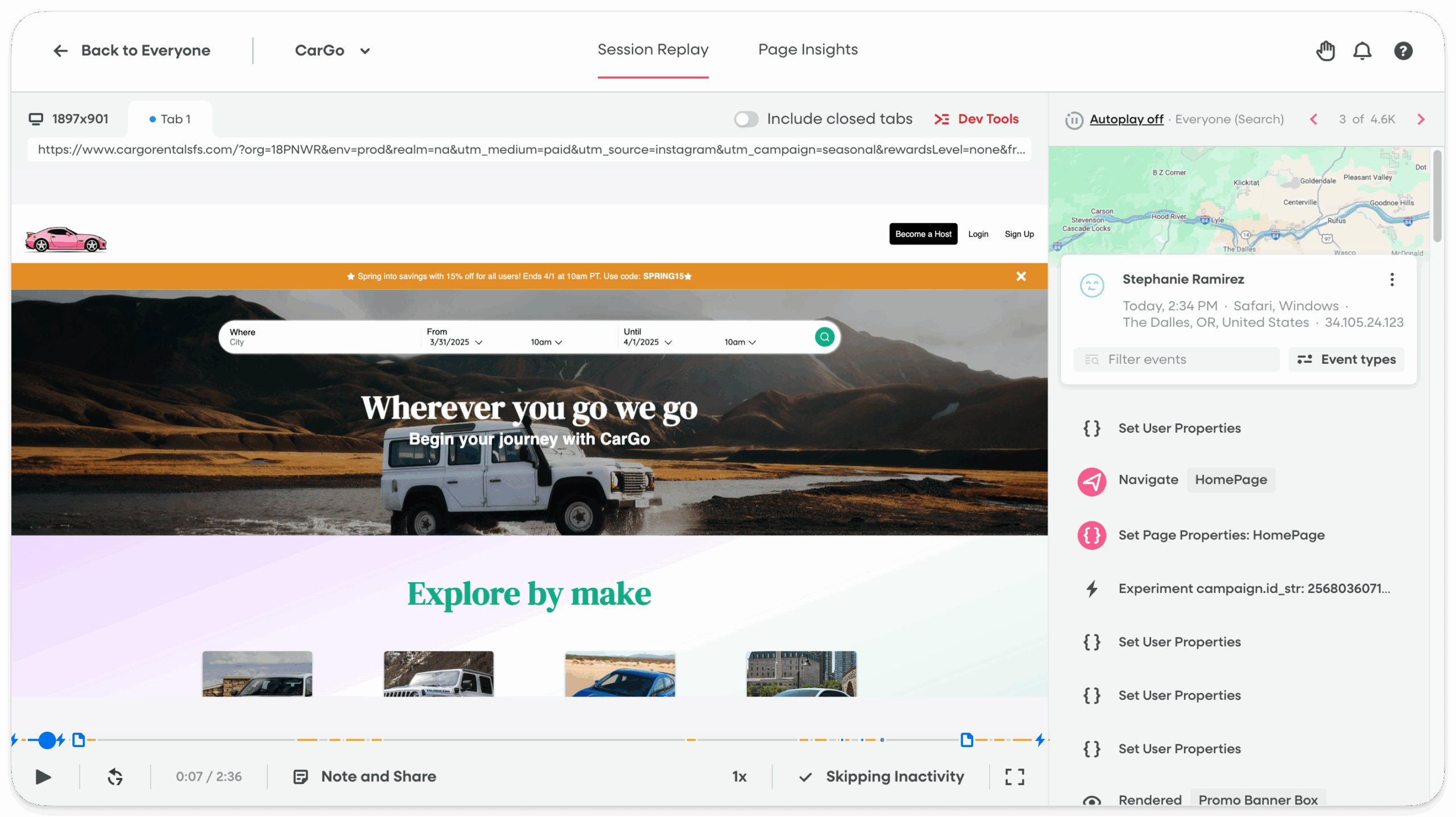
Fullstoryis a journey analytics platform that provides visibility over users on both web and mobile apps. It’s known for its conversion funnels (e.g., to track purchase or sign-up steps) and trusted session replays with high fidelity.
For product, UX, and customer support teams. Fullstory is best for diagnosing usability issues, fixing bugs, and building deep empathy with users.
Fullstory security methods for logging in
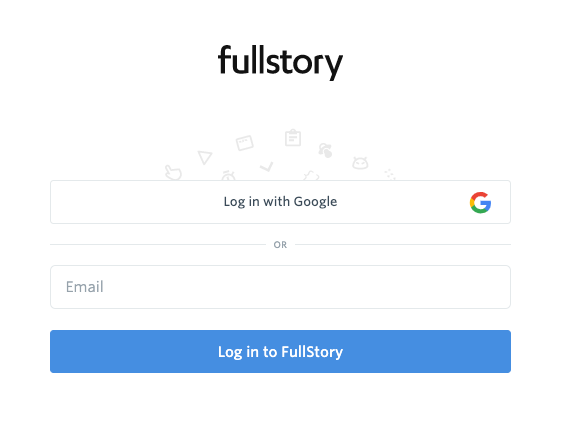
For new users, the standard is to log in using email and password. You head to the login page, enter your credentials, and you are in.
However, Fullstory support cannot manually grant you access if you lose your email. This protects you from social engineering attacks, but it also means you are on your own if you lose access to your email account.
To add extra layers of security, there are two other ways to access the Fullstory app:
1. Google authentication
Fullstory’s Google Authentication (“Sign in with Google”) uses your Google identity to link your account and let you sign in with one click. It reduces time to value for internal teams if they’re all logged into their work Chrome profile.
Additionally, admins can enforce this to secure operations. All you have to do is toggle the “Require Google Sign-In” option in Settings > Account Management > Users.
This removes password-related vulnerabilities (since 65% of employees use variations of the same password across multiple sites) and eliminates the risk of ex-employees keeping access to the platform.
2. Single Sign-On (SSO) for enterprises
For enterprise accounts, Fullstory supports SSO via SAML 2.0. Integrating with Identity Providers (IdPs) like Okta, Azure AD, or OneLogin to make provisioning easier.
Setting it up requires an Admin role in Fullstory and Super Admin access in your IdP. Navigate to Settings > Account Management > SSO to set up the metadata exchange:
- Copy data: Extract the Entity ID and ACS URL from Fullstory. Paste these into your IdP (e.g., Okta) application settings.
- Generate XML: Have your IdP generate a metadata XML file containing your X.509 certificates and login URLs.
- Upload metadata: Paste that XML back into Fullstory to complete the integration.
- Test: Use a dedicated incognito window to test the login flow before enforcing it organization-wide. If you enforce it and the certificate is wrong, you will lock everyone (including yourself) out of the account.
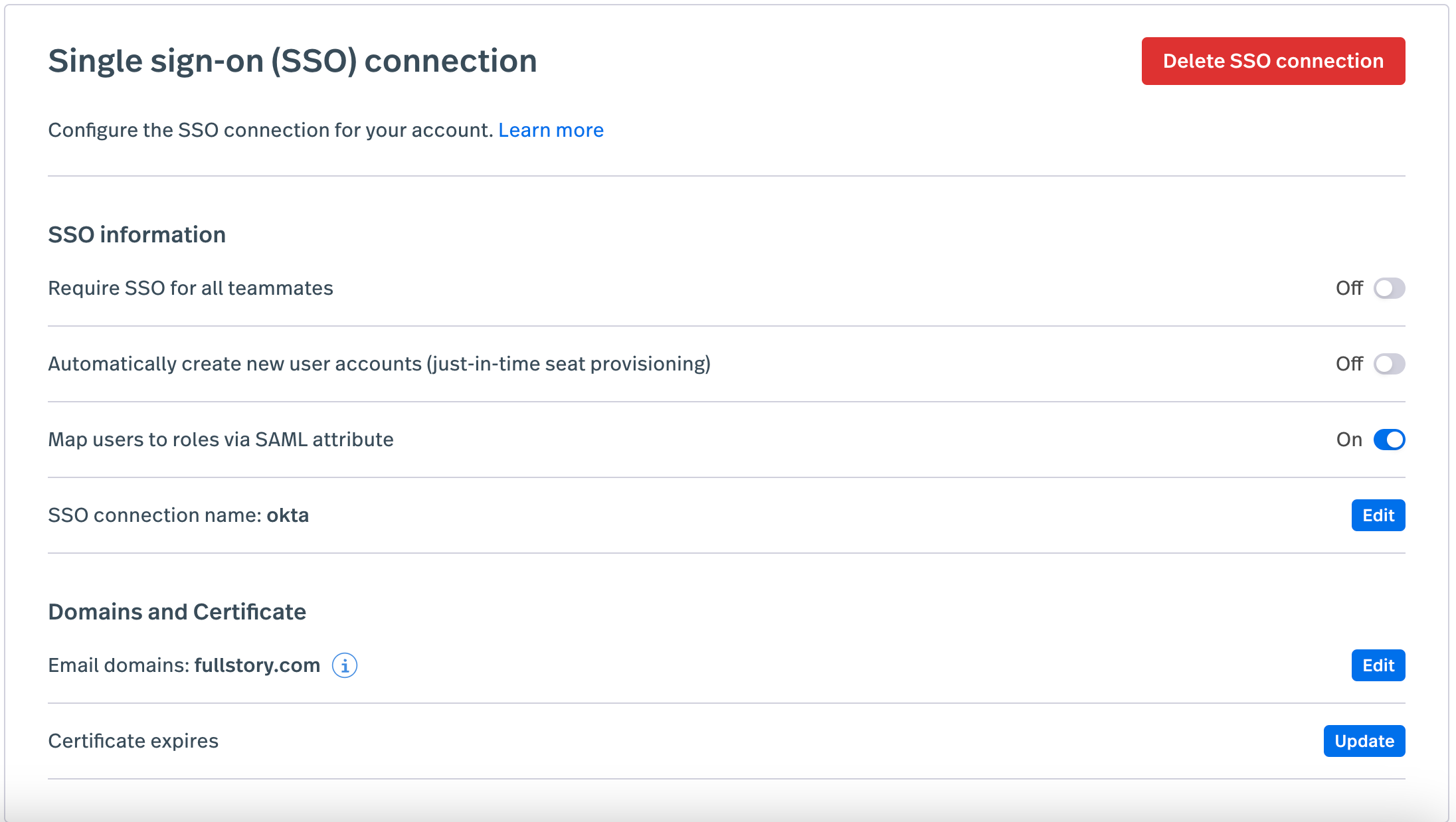
Additionally, you can further enhance your SSO settings by:
a) Mapping roles to IdP Groups
You can map your IdP groups to Fullstory roles using the `memberOf` attribute (or custom attribute, depending on your IdP). For instance:
- IdP group: Engineering_Leads → Fullstory: Admin Role
- IdP group: Marketing → Fullstory: Standard Role
- IdP group: Interns → Fullstory: Guest Role
This guarantees permissions are set up automatically based on verified company roles. Plus, it prevents you from having to update users’ permissions every time a new employee signs up.
b) Setting up SCIM to automate user provisioning (Okta only)
Fullstory also supports SCIM to manage access and permissions from your IdP. If a Product Manager is promoted to Director and moves into the “Leadership” group, the IdP detects the group change and instantly pushes the new permission level to Fullstory.
To connect it:
- Generate authentication token: Go to the Account Provisioning section in the SSO settings and choose the SCIM Provisioning option. Here, Fullstory will generate the connector URL and the authentication token.
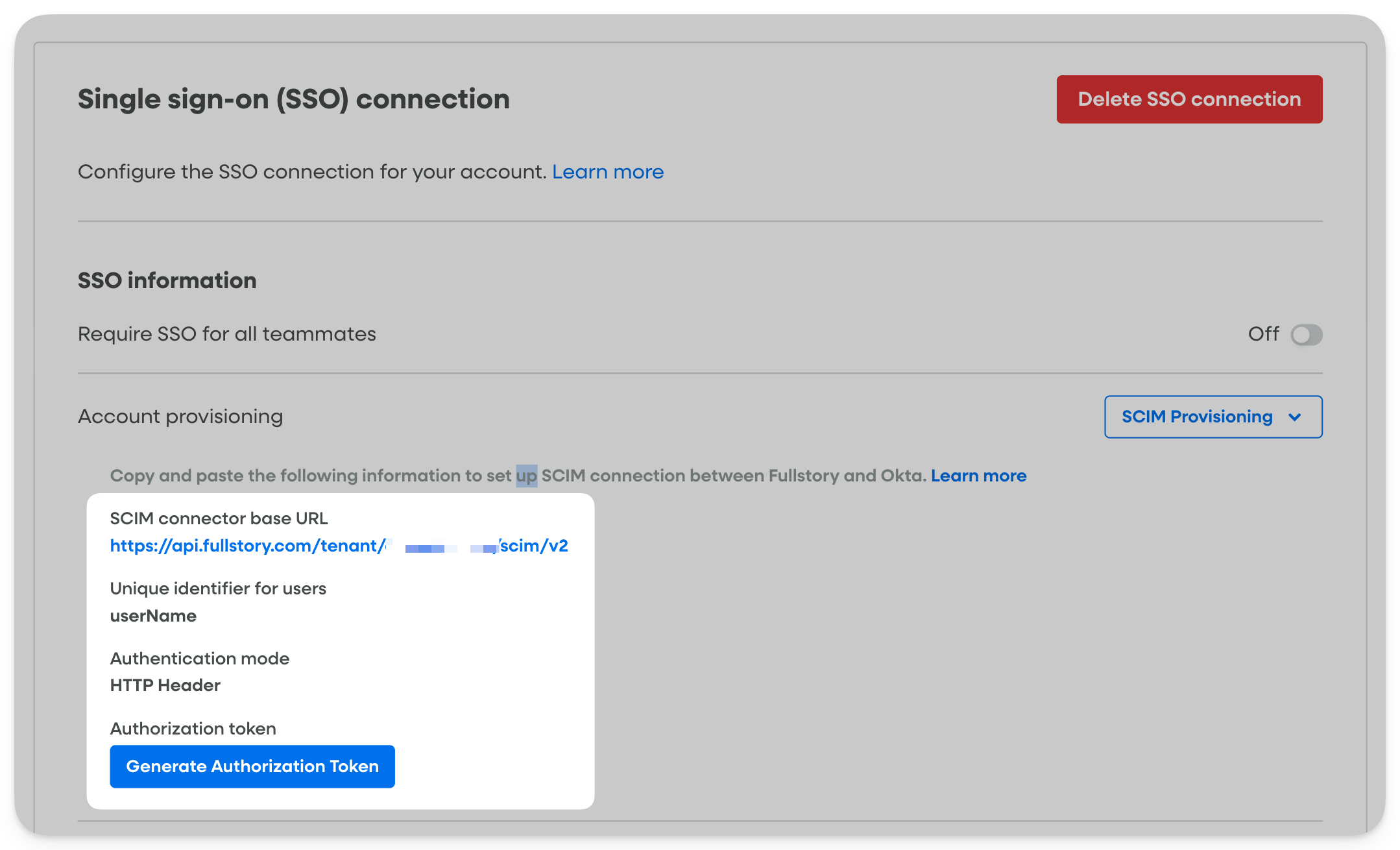
- Configure the IdP: Switch to the Fullstory app in Okta and enable SCIM. Then, head to the provisioning tab to add the API connectors (the URL, unique identifier, etc) and the token generated in Fullstory. If the test is successful, click on Save.
- Automate role governance: Identify the variable name for roles in Fullstory’s API documentation (usually roles or fullstoryRole). Then, map its attributes in the Okta app to start assigning roles to your user groups.
Note: This is only compatible with Okta. If your IdP isn’t Okta, remember you can still enable Just-in-Time (JIT) provisioning. This makes it so when a new user joins Fullstory from the IdP, their account will be created instantly using their IdP’s attributes (Name, Email, Role).
Consider switching to Userpilot
After logging into Fullstory, you’ll be able to understand what happens inside your product in detail. But you’ll also need a tool to help you act on that data to improve the user experience.
Userpilot integrates session replay with product analytics tools, in-app guidance, and user feedback. It allows you to not only see where users struggle but also trigger in-app experiences to fix it immediately.
To see how you can directly improve user engagement after finding an insight, book a Userpilot demo to turn customer data into product growth.

Skip the Complex Fullstory Login Setup and Unlock Instant Value with Userpilot
About the author