
Heap login settings focus on adding more walls to your account to make it less vulnerable. So how can you set up a login process to make product analytics both easy and safe to access?
I’ll go over how you can configure Heap to add 2FA and SSO without wasting more time on admin work:
What is Heap?
Heap is a product analytics platform that provides in-depth insights into customer behavior.
It can track user interactions within your product automatically, helping you identify friction via retroactive analysis. This makes it a great tool for fast-moving teams who need faster, easy access to historical data, behavioral analytics, and session replays.
Is managing Heap login permissions slowing down your team?
What is your main goal for your product right now?
How do you currently act on your analytics data?
Turn Analytics into Action with Userpilot
Don’t get stuck in setup settings. Engage users the moment they sign in.
Heap login settings explained
For standard users who signed up using a work email address, the default login process will only involve entering an email and a password.
Other than that, Heap’s login options are focused on security, only offering two-factor authentication (2FA) and single sign-on (SSO) for enterprises.
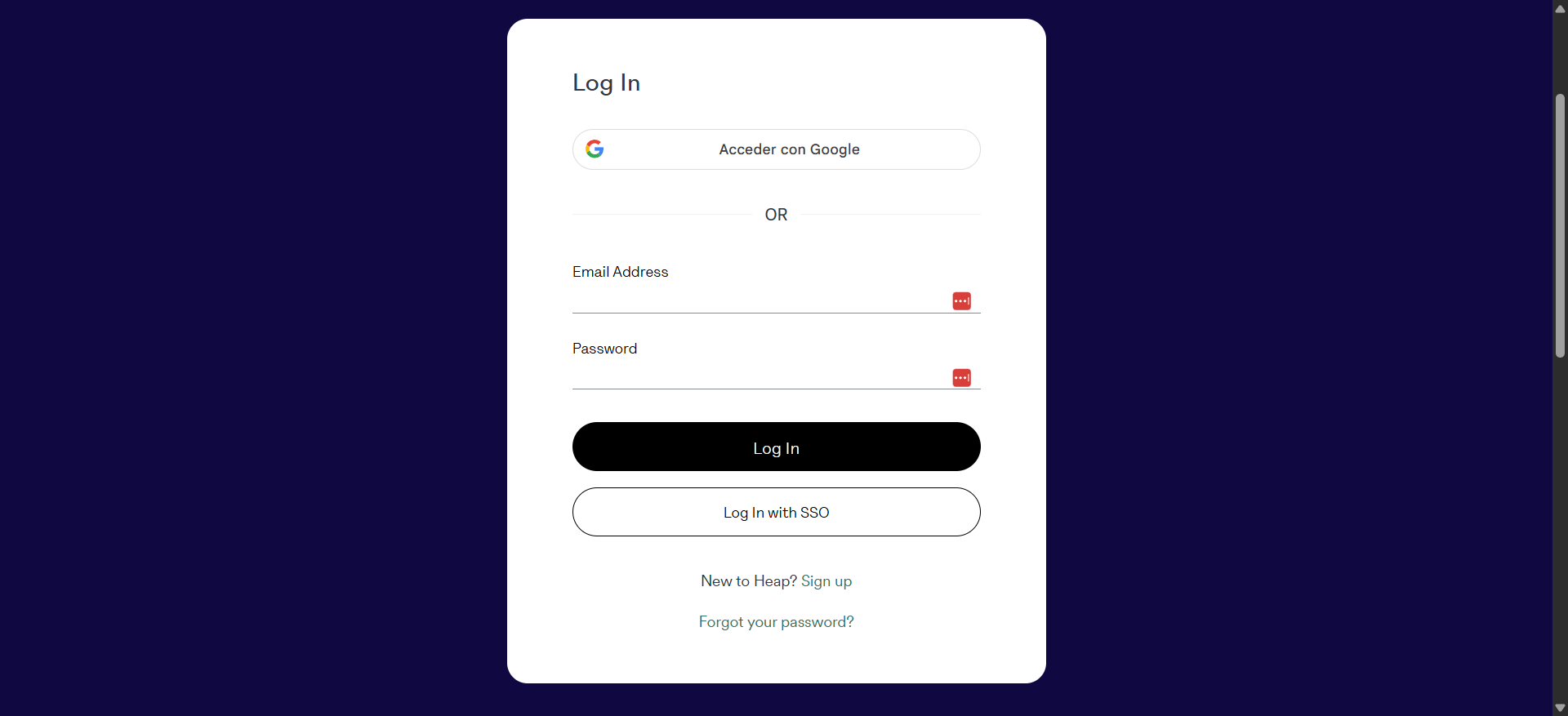
This is how they work:
Two-factor authentication (2FA)
If SSO is not an option for you yet, you can enforce 2FA with an authenticator app (like Google Authenticator or Authy).
To set it up, just navigate to Account > Manage > Personal Settings and enable 2FA immediately. It will show a QR code that you’ll need to scan with your authenticator app to complete the connection.
After that, all users must enter a verification code in order to log in to Heap.
Note: As an individual user, if you lose both your device and your backup code, then Heap’s support won’t disable 2FA for you. You can only restore access via your organization’s admin.
Single sign-on (SSO) for enterprises
Heap’s Single Sign-On (SSO) allows users to log in using their IdP’s credentials, eliminating Heap-specific passwords completely. It allows admins to manage access and permissions from Okta, Azure, AWS, or Google Workspace (to log in using the “access with Google” button).
These are the general steps to set up SSO in Heap:
- Add Heap to your IdP: Depending on whether you’re using Okta, Azure AD, or Google, you might have to create a custom app for Heap or just add a pre-installation.
- Find certification and SSO URL: Navigate the Heap dashboard in your IdP to download the Base64 certificate and copy the SSO URL. This process will heavily depend on your IdP.
- Configure Heap: Go to Account Settings in the Heap app to upload the certificate and add the SAML details from your IdP.
- Locate metadata: In Heap, navigate to Account > Manage > General Settings to find the service provider details (Entity ID, AC URL, token, etc). Copy those details and paste them in their corresponding fields inside your IdP. This will complete the connection.
- Map attributes: To prevent login errors, ensure that user attributes (name, email, activity) are mapped correctly in your IdP so Heap can translate them correctly.
Note: Once enabled, Heap automatically enforces SSO for all non-admin users. So make sure all users are properly mapped in your IdP to prevent issues.
Setting up SCIM
If your IdP is OneLogin or Okta, Heap lets you set up SCIM to automate provisioning.
This is so when HR adds a new UX researcher to your IdP, SCIM will automatically create an account and assign permissions based on their department. If that employee leaves, SCIM instantly revokes access.
To implement SCIM in Heap, go to Account Settings in Heap and enable SCIM provisioning in the SSO section. Then, copy the bearer token and paste it into the SCIM Base URL in your IdP to complete the integration.
Remember: Where to paste the bearer token and how to tweak the SCIM setting (like attribute mapping and setting group permissions) will heavily depend on your IdP.
Try Userpilot if you’re in a PLG team
Setting up Heap’s login process ensures that your team spends less time emailing the admin and more time analyzing user behavior.
But since Heap’s pricing isn’t predictable and its analytics tools aren’t as deep as other platforms, you might need an alternative.
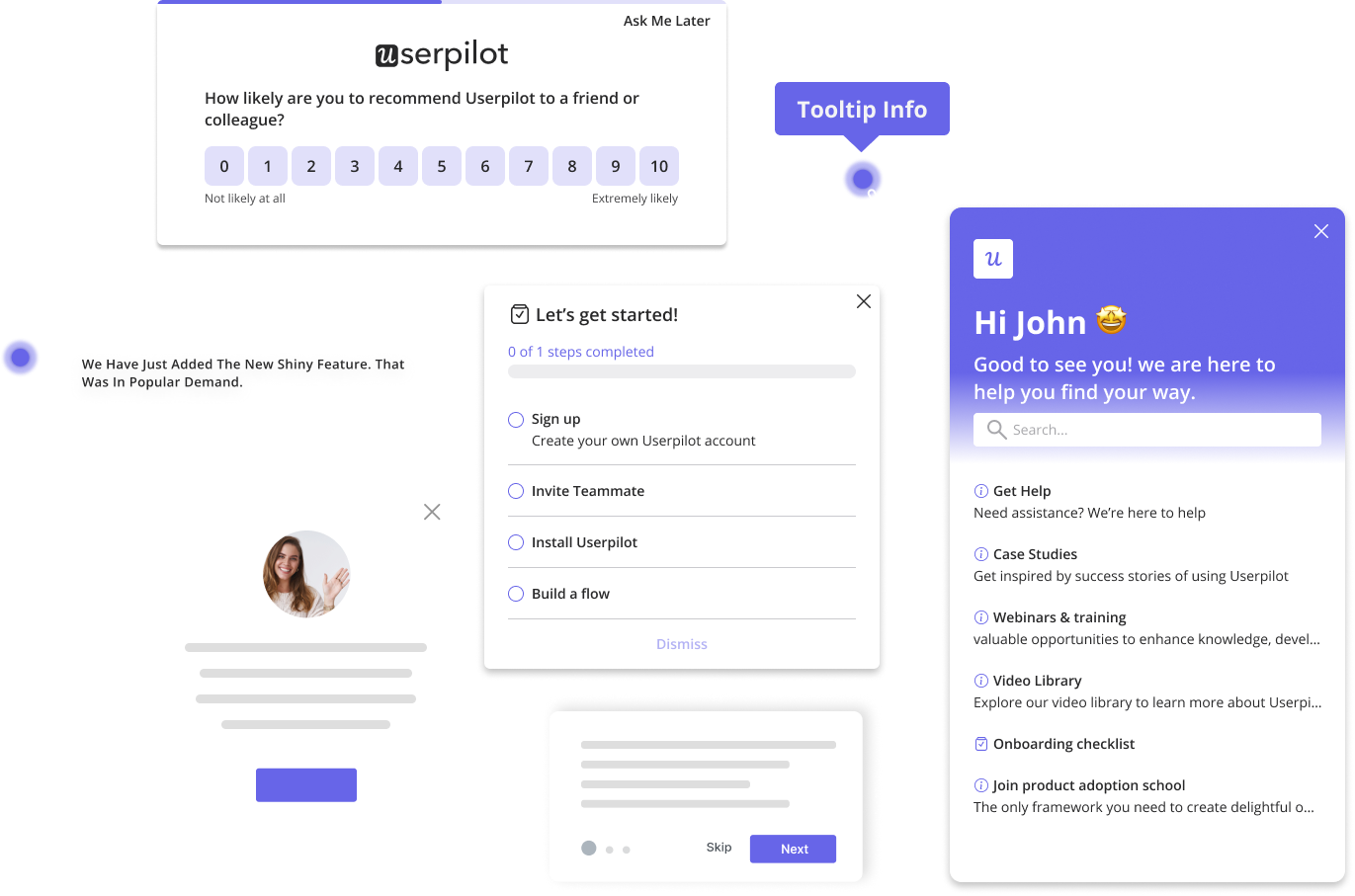
For example, Userpilot combines product analytics with in-app engagement so you can take action right after getting an insight. Making it a better option for agile PLG teams than Heap.
So if you’re in a fast-moving product team, Userpilot might be more of a fit. Book a demo to start tracking the product experience without coding!

Skip the Complex Heap Login Setup and Drive Immediate Growth with Userpilot
About the author