Whatfix Login: How to Sign In, Access the Dashboard, and Fix Common Issues


For teams operating across complex technology stacks, understanding how and where to access Whatfix isn’t always straightforward, especially in enterprise environments with layered authentication and access controls.
In this guide, I’ll break down why Whatfix uses multiple login pathways, how each one works in practice, and what to do when things don’t behave as expected. I’ll also walk through the most common login issues and how to resolve them quickly, so you can get back to focusing on product adoption rather than access.
What is Whatfix?
Whatfix is a digital adoption platform that helps companies deliver contextual in-app guidance through walkthroughs, tooltips, checklists, and self-help widgets.
It’s most commonly used during user onboarding, large-scale software rollouts, and internal tool adoption, where users need to learn complex systems quickly without slowing down day-to-day business operations.
Why Whatfix has multiple login pathways
Whatfix doesn’t use a single, universal login in the way many smaller SaaS tools do. It operates in enterprise environments where different user groups and people across teams interact with the platform in very different ways, often within complex infrastructure setups that include strict access controls and identity management requirements. As a result, authentication is closely tied to role-based permissions, single sign-on policies, and compliance requirements, as well as the specific part of the platform a user is trying to access.
In practice, this means there are distinct login paths depending on whether you’re accessing the core dashboard, signing in through SSO, using the support portal, or working with Whatfix Studio.
Whatfix dashboard login for creators and admins
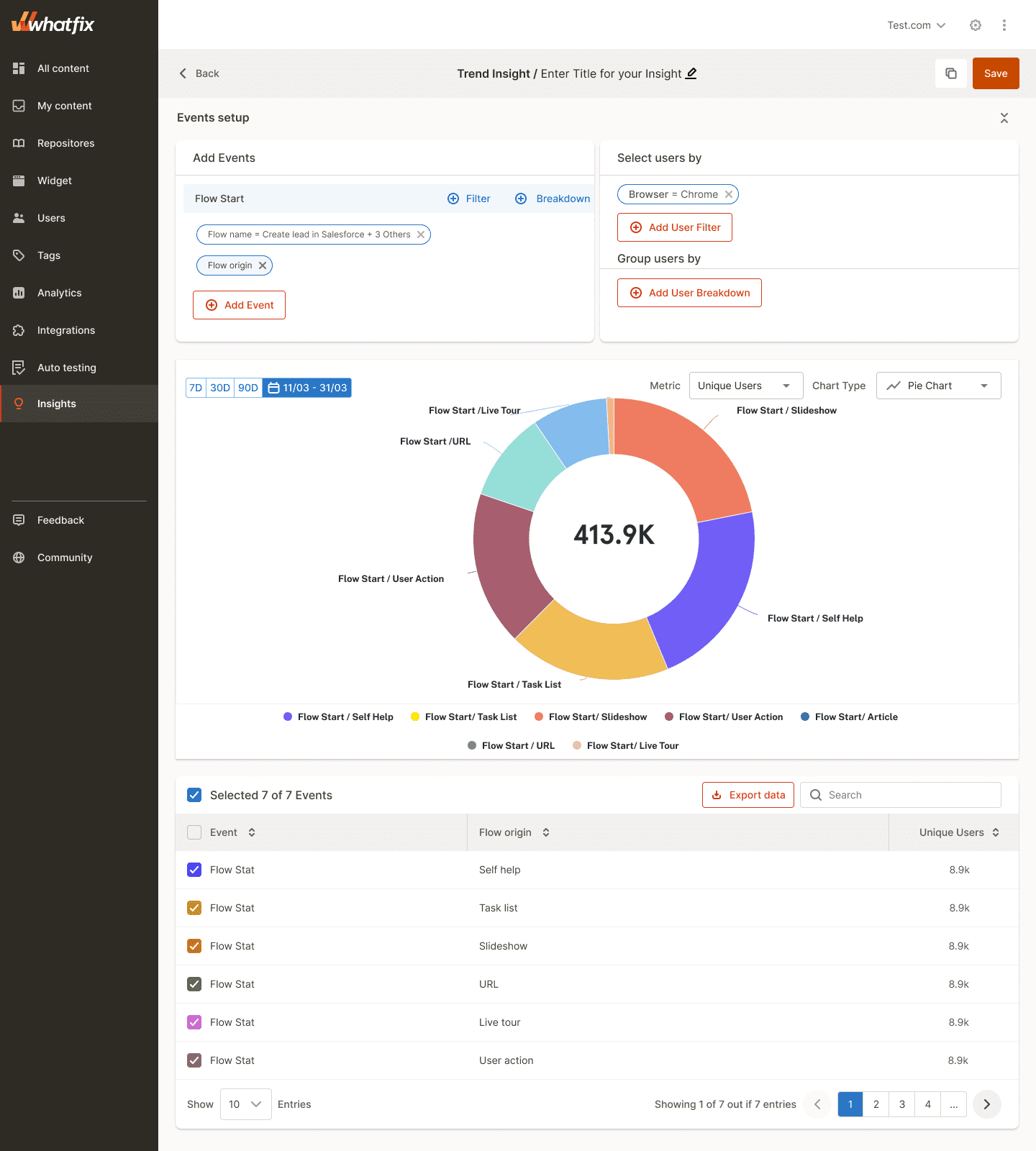
The Whatfix dashboard is the primary backend access point if you’re responsible for building, managing, or governing in-app guidance. This is where you configure walkthroughs, manage environments, control permissions, and monitor adoption data to research and analyze how users interact with your product or internal tools.
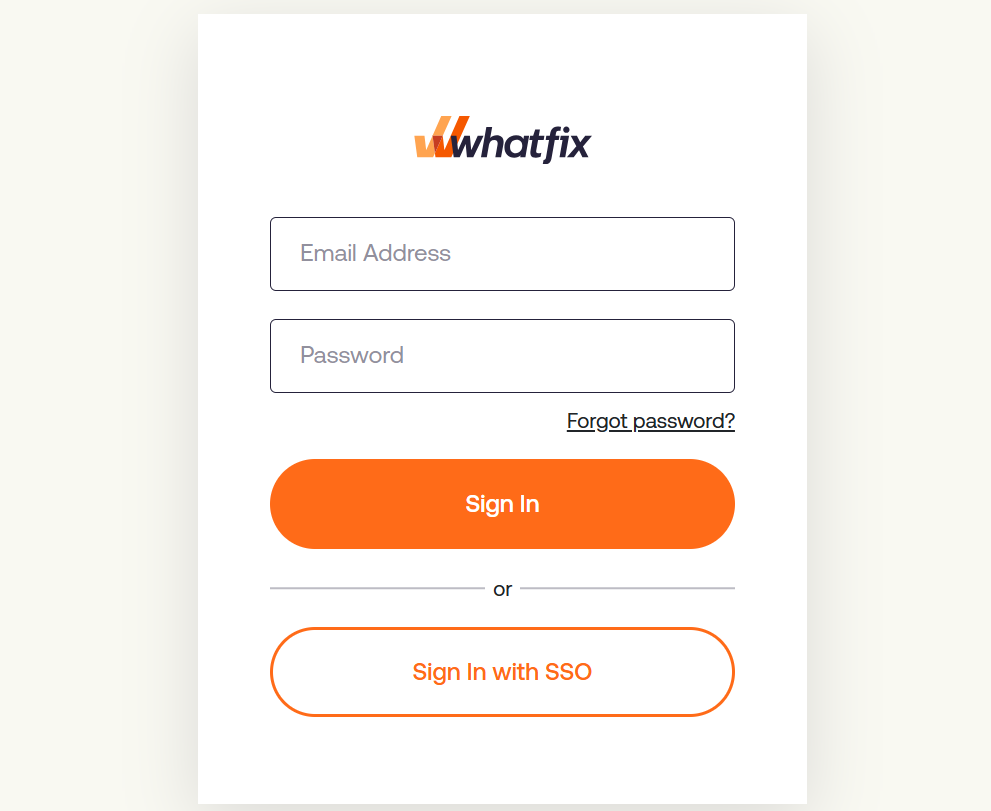
You access the dashboard through the same sign-in page, but the way you authenticate depends on how your organization has set things up. Whatfix supports two authentication options, and understanding which one applies to you can save time when login issues come up.
- Email and password: This option is usually available in smaller teams or in environments where SSO hasn’t been enforced yet. It’s straightforward and quick to use, but it relies on separate credentials that need to be managed alongside the rest of your tools. For larger teams, this can create friction around password resets, user offboarding, and access control, which is why it’s often disabled as organizations scale.
- Single sign-on (SSO): In most enterprise setups, SSO is the default. Instead of entering a Whatfix specific password, you’re redirected through your company’s identity provider and authenticated using your existing work credentials. This matters for security and administration, since access can be granted or revoked centrally when roles change, or employees leave, reducing the risk of outdated or unauthorized access. If your organization uses SSO and your password login fails, this is usually expected behavior rather than an error.
Whatfix studio login
This is where most login related confusion tends to happen, especially for content creators. Logging into the dashboard alone isn’t enough to build guides. To create user walkthroughs, tooltips, and flows, you also need access to Whatfix Studio, which runs as a browser extension and operates directly on top of your application.
Unlike the dashboard, Studio doesn’t live on whatfix.com. It loads on the URL of the product you’re adding guidance to, which means the login experience feels different even though it’s tied to the same account.
To access Whatfix Studio, the flow typically looks like this:
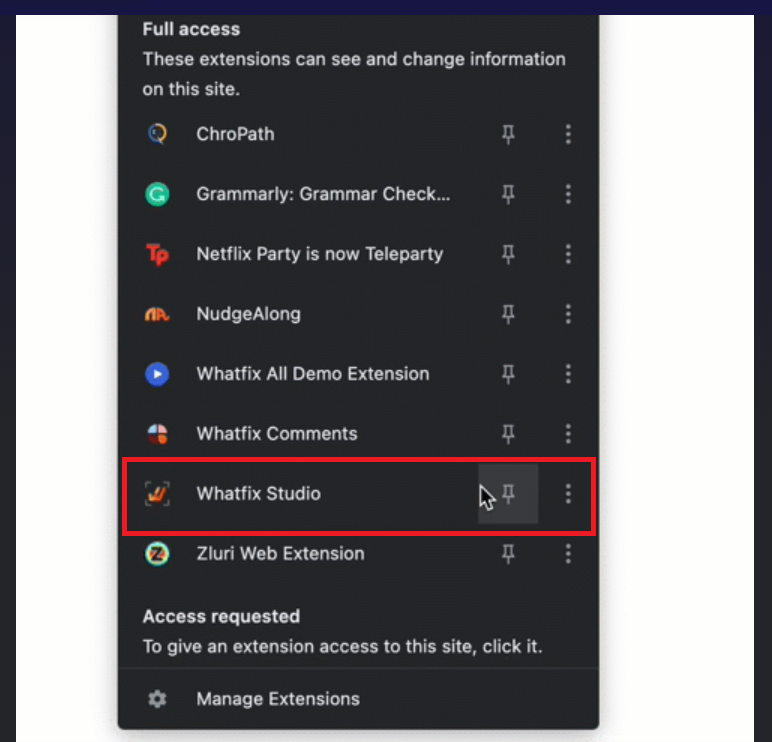
- Install the Editor extension: Download the Whatfix Editor extension for your browser, usually Chrome, Edge, or Firefox. In many environments, there’s a separate Player extension meant for end users, so it’s worth double-checking that you have the Editor version installed.
- Open your application: Navigate to the page where you want to build or edit guidance, such as your Salesforce instance or internal tool.
- Activate the extension: Click the Whatfix icon in your browser toolbar. If everything is set up correctly, a sidebar appears and connects your session to your Whatfix account.
Whatfix support portal login
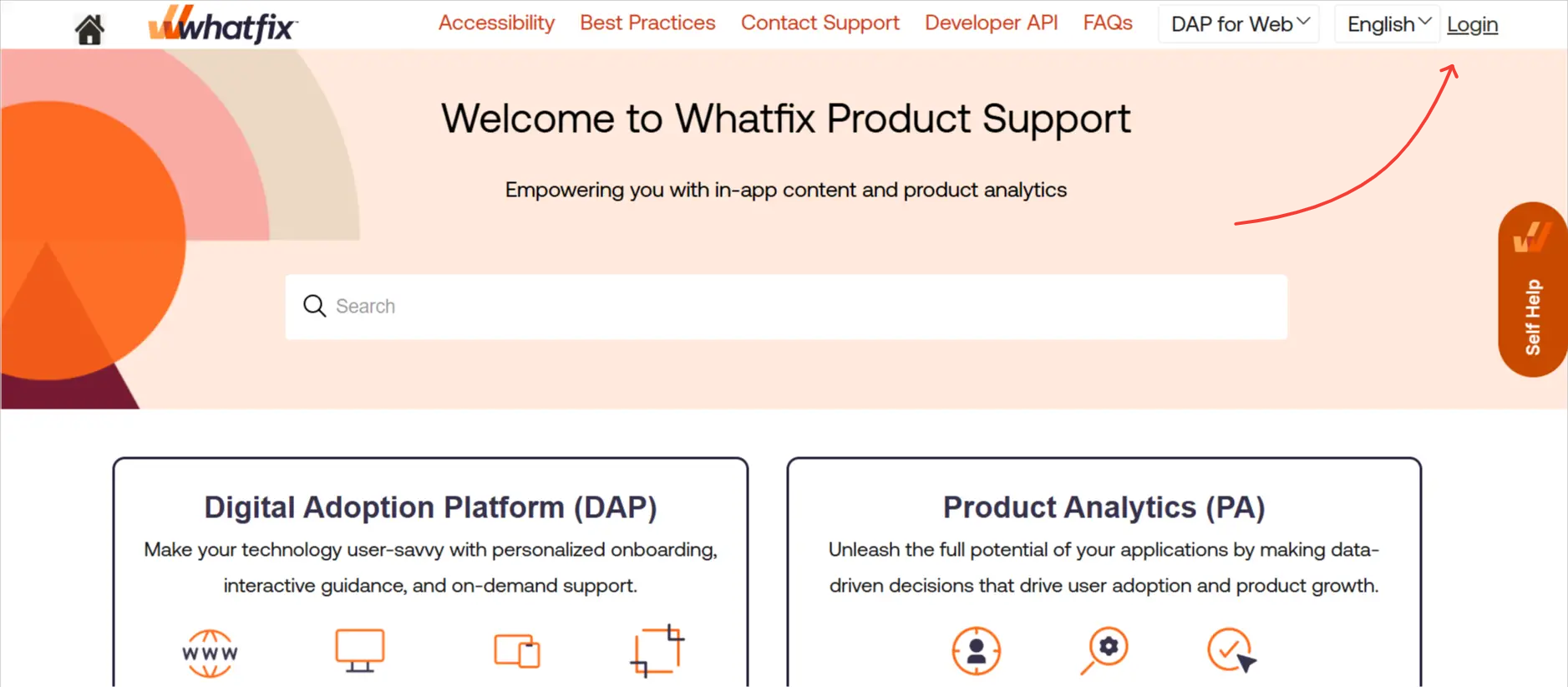
The Whatfix support portal is a separate surface from the main dashboard, even though it uses the same authentication methods. You still sign in with your email and password or through SSO, but access is governed independently and isn’t always granted by default.
This is where many teams get tripped up. You might be able to log into the dashboard without issue, yet still be blocked from submitting support tickets, viewing support resources, or accessing account-specific help. When that happens, the problem usually isn’t your credentials. It’s that your user account hasn’t been provisioned for support access or hasn’t been linked correctly to your organization’s support profile.
In some cases, clicking a “Contact Support” link from inside the dashboard will redirect you automatically and sign you in. In others, you’ll land on the support site and be asked to authenticate again, only to see limited access or an error message. When that happens, the fix typically involves updating permissions or requesting access from your Whatfix admin or account owner, rather than resetting a password or changing login methods.
The key thing to know is that successful dashboard access doesn’t guarantee support portal access. Treat them as related but distinct systems, especially when troubleshooting login issues.
Whatfix login troubleshooting
When login issues come up, the fastest way to resolve them is to identify where the failure is happening. In most cases, it’s not the login page itself, but a mismatch between credentials, permissions, or the environment you’re working in. Use the sections below to diagnose the problem and take the next best step.
Incorrect username or password
This usually happens when email and password login is enabled, but credentials don’t match what Whatfix expects.
What to check:
- Make sure you’re using your work email, not a personal address or alias.
- Check whether your organization enforces SSO. If it does, password login may be disabled entirely, even if the option is visible.
- Use the password reset option only if you know your organization allows password-based login.
What to do next:
If password resets don’t work or you keep seeing errors, switch to the SSO option or confirm with your admin which login method your organization uses.
SSO login errors and redirects
SSO issues usually look like redirect loops, access denied messages, or being sent back to the login page after authenticating.
What to check:
- Confirm you’re signed into the correct company account in your browser.
- Make sure the email you’re using exists in your identity provider and has access to Whatfix.
- Try opening a new browser session or signing out of other work accounts before logging in again.
What to do next:
If the issue persists, this is typically a provisioning or role assignment problem. Contact your Whatfix admin or IT team to confirm that the Whatfix app is assigned to your user in the identity provider.
“You do not have access” or “account not found”
These messages mean authentication succeeded, but you don’t have permission to access the area you’re trying to reach.
What to check:
- Confirm whether you’re trying to access the dashboard, Studio, or the support portal, since each has separate permissions.
- Verify that your account has been activated and linked to the correct organization.
What to do next:
Request access from your Whatfix admin or account owner. Password resets won’t resolve this issue because it’s permission-based, not credential-based.
Browser, cookie, or extension issues
If login appears to succeed but Studio won’t load or keeps asking you to sign in, browser settings are often the cause.
What to check:
- Make sure you’re not using incognito or private browsing modes.
- Allow third-party cookies for Whatfix-related domains.
- Confirm you’re using the Editor extension, not the Player extension.
What to do next:
After updating browser settings, reload your application, activate the extension again, and retry the login flow.
Login issues in specialized environments
In more complex setups, standard login steps may not apply.
What to check:
- For embedded tools like Salesforce, confirm you’re logged into the host application before launching the Editor extension.
- For mobile apps, ensure you’ve completed the device pairing process from the desktop dashboard.
- For private cloud or on-premises deployments, verify that you’re connected to the required VPN and using the correct internal login URL.
What to do next:
If access still fails after these checks, the issue is likely environment-specific. Involve your IT team or Whatfix support to review configuration, network policies, or platform-specific requirements.
This approach helps you narrow down the root cause quickly and avoid treating every login issue as a generic authentication problem.
Consider switching to Userpilot
Userpilot is a no-code all-in-one platform built for SaaS teams that want to drive adoption and growth directly inside their product, without adding friction to existing workflows or introducing unnecessary operational overhead.
If your priority is helping users reach value faster, encouraging consistent feature usage, and understanding engagement through clear, product-level analytics and AI-powered insights that support product demand, Userpilot may be a better fit for your needs.
Here’s where Userpilot stands out.
- A simpler login and setup experience: Like Whatfix, Userpilot supports email and password login as well as SSO. The difference is in how the product is structured. There’s no separate editor environment to authenticate into and no additional mental model around switching between a dashboard and a creation context that runs elsewhere. Once you have access, you can build, publish, and iterate without dealing with extensions, environment-specific activation steps, or parallel login flows.
- Built for product and growth teams: Userpilot is designed around how product managers, growth teams, and founders actually work, and brings onboarding, engagement, and analytics into a single workflow that supports fast iteration. Instead of juggling separate tools or relying on IT for every change, teams can experiment, respond to user behavior, and improve experiences in real time. For organizations focused on continuous improvement rather than one-off enablement programs, this difference matters.
- Predictable and transparent pricing: Whatfix pricing is not publicly listed and is typically negotiated through enterprise contracts, which can make long-term cost planning difficult. Userpilot offers clear, usage-based pricing with published tiers. Pricing starts at $299 per month billed annually for up to 2,000 monthly active users and scales predictably as your product grows, without surprise add-ons or locked in complexity.
Ready to switch? Book a demo to see how Userpilot can help your team deliver in-app experiences, track meaningful usage data, and unlock the full potential of your product without writing code.
Userpilot strives to provide accurate information to help businesses determine the best solution for their particular needs. Due to the dynamic nature of the industry, the features offered by Userpilot and others often change over time. The statements made in this article are accurate to the best of Userpilot’s knowledge as of its publication/most recent update on December 28, 2025.
About the author