Userpilot Resource Center: Features, Use Cases, Pricing and Setup Guide

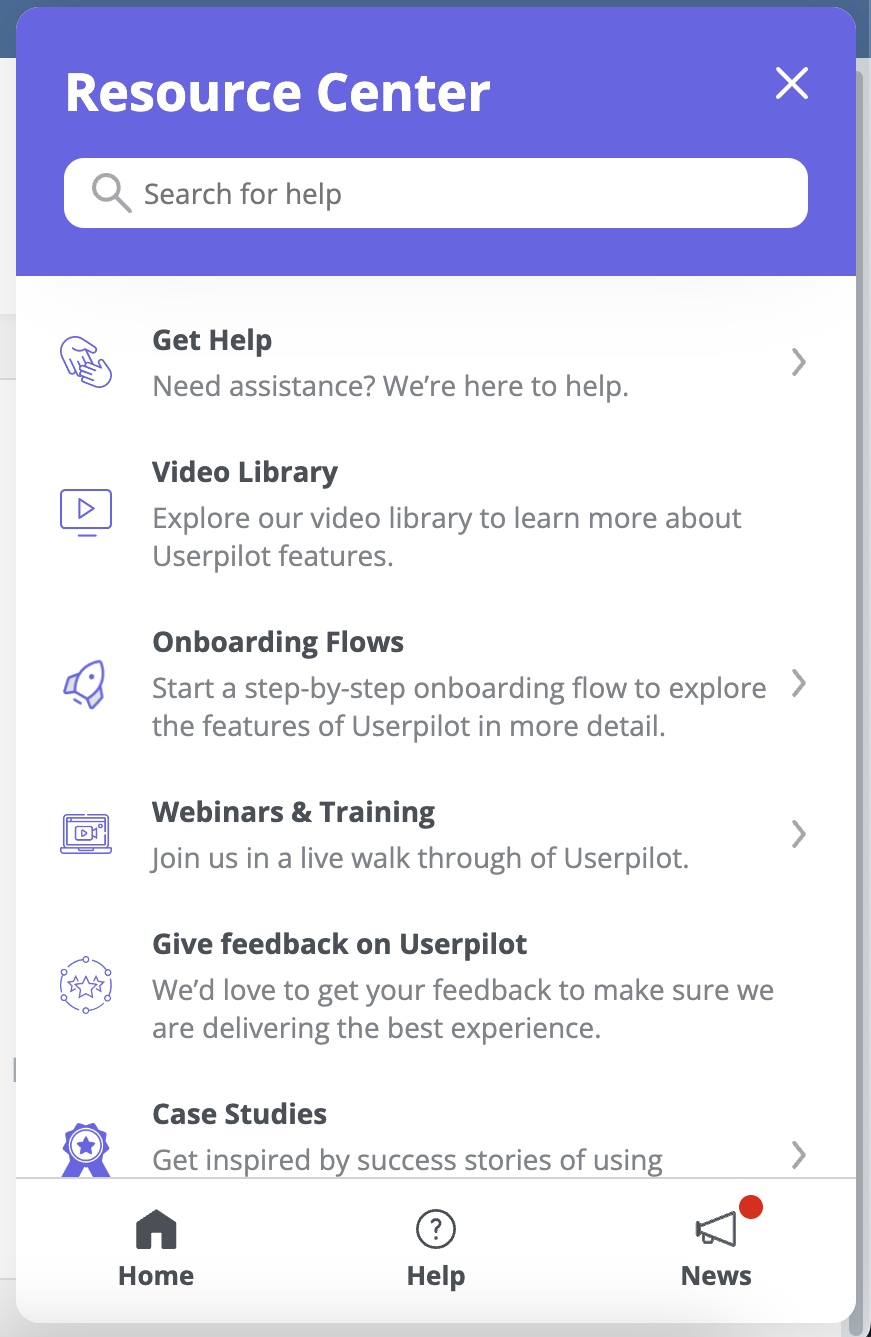
The Userpilot Resource Center exists because every support team fields the same questions on repeat, and the answer usually already exists in a help article or a product tour the user never finds. That content sits somewhere they have to leave the app to reach, which for most people is the same as it not existing. A resource center closes the gap by putting on-demand in-app support inside the product, at the moment the question comes up.
I want to be specific about what makes Userpilot’s version worth the setup time, because the pitch is easy to get wrong. Holding content is not the interesting part, since a link to your help site does that. Every module carries its own page and audience targeting, which is what turns a static help widget into contextual self-service.
That single idea runs through this whole guide. Anyone can list articles, so the value comes from showing a specific article to a specific segment on the exact page where it’s relevant.
As a PM at Userpilot, I’ve built and broken enough of these to know where people get stuck, so this guide covers the module types, the targeting and trigger rules, the knowledge base search setup with its real constraints, localization, analytics, pricing by plan, and two customer examples with verified numbers.
What the Userpilot Resource Center is, and how it is structured
The Userpilot Resource Center is a feature that gives your end-users on-demand answers and contextual in-app guidance directly inside your application. It offers in-app tutorials, access to product news, the ability to replay previously viewed Userpilot content, and search across your knowledge base.
That replay capability is the one people overlook, and I think it’s underrated. Users can reopen a walkthrough or flow they’ve already seen, straight from the Resource Center, without waiting for the original trigger conditions to fire again. Someone who skimmed your onboarding tour on day one and needs it on day nine can get it.
Now the part that matters. Holding content is the easy half, and any help widget on the market can do it. What separates the Userpilot Resource Center from a link to your documentation is that targeting is set at the module level, so each item carries its own rules about which pages it appears on and which users can see it.
The practical effect is that two users on the same screen can open the same beacon and see different things. An admin mid-trial gets the setup checklist and the billing article. A read-only user three months in gets neither, because neither is relevant to them.
One structural fact is worth stating early, because it surprises people and it’s the first thing I’d want to know. If a user is not eligible to see any of the modules in your Resource Center, the beacon does not appear at all. Your targeting decisions personalize the widget and control whether it renders.
The modules you can add, and how to group them
Building a Userpilot Resource Center starts with adding modules. Clicking “Add Module” opens a dropdown with six options, and each one covers a different kind of help.
| Module | What it does |
|---|---|
| Flow | Adds a single flow, whether one step or a sequence of steps |
| Checklist | Adds a checklist pattern with a set of tasks to guide users toward a goal |
| Survey | Adds a survey to gather user feedback on demand |
| Link | Sends users to an external URL, such as a knowledge base article |
| Video | Embeds a video for visual guidance |
| Custom JavaScript | Runs your own JS function, for example to trigger a chat widget |
A flat list of twelve modules is a scroll problem. You can combine related modules into a Group by clicking “Create Group”, which displays them together under one section title. A “Getting Started” group that gathers your onboarding flows, a user onboarding checklist, and links to setup articles gives new users one obvious place to land.
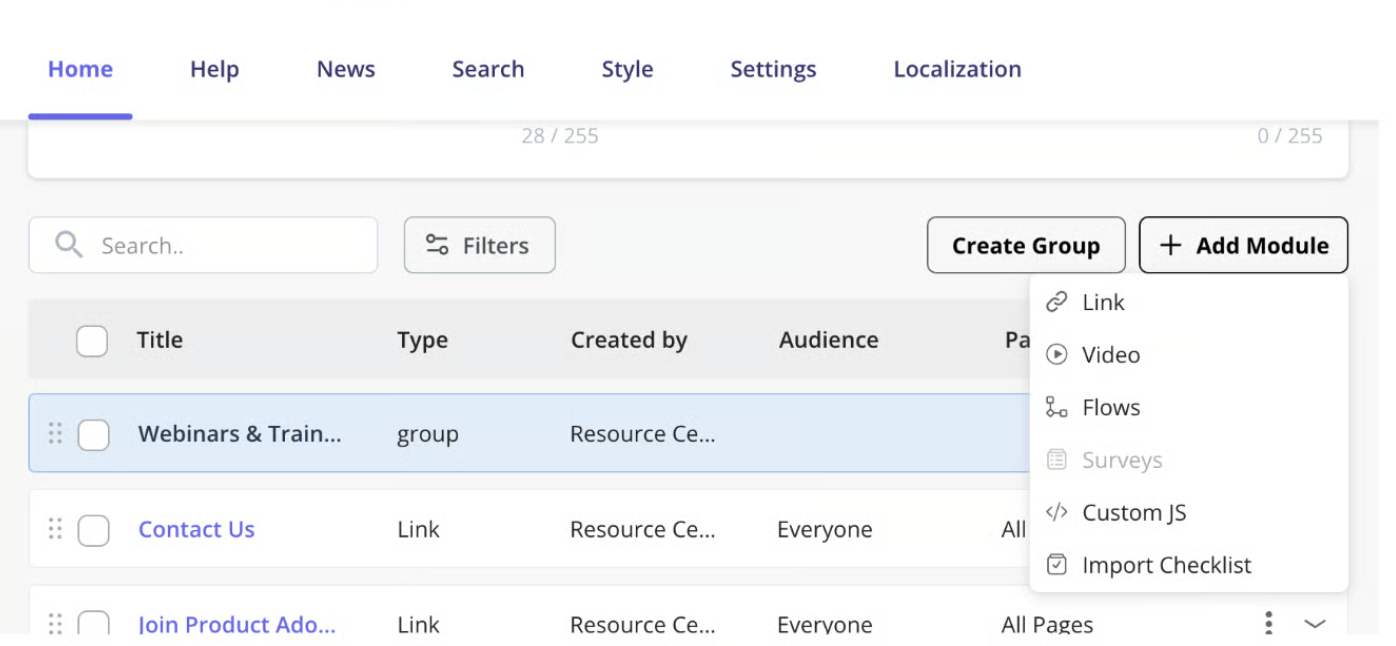
Grouping is organization, though, and organization alone doesn’t make help contextual. Targeting in the Resource Center is set per module, so you specify which content appears for which users and on which pages, item by item. This is the mechanism behind everything else in this guide.
The News tab works a little differently from the rest. Each News post carries its own audience settings, and a “Live” toggle publishes it or holds it in draft. That means a new product announcement can be scoped to the segment it affects rather than broadcast to your whole base.
One detail on video keeps this honest, because it trips up teams during setup. Userpilot does not host videos itself, so they have to be hosted externally on YouTube, Vimeo, Loom, or similar, then embedded into the Resource Center using an HTML embed code.
How targeting decides who sees what, and where
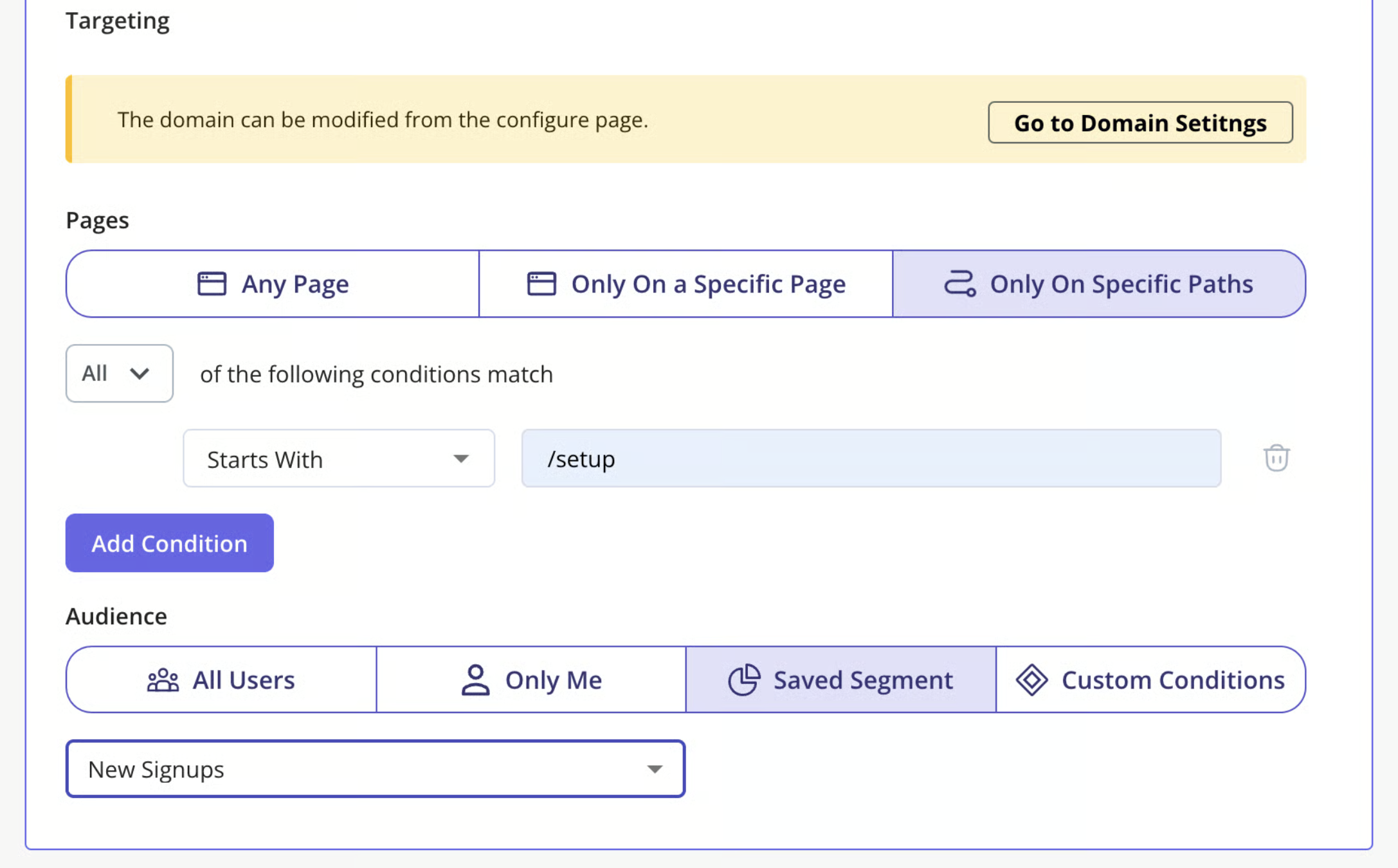
Targeting splits into two questions: where the content shows up, and who gets to see it. Page targeting handles the first, based on the URL the user is currently on.
- Any Page (default): Shows the Resource Center anywhere the Userpilot script is installed.
- Only on Specific Paths: Limits the Resource Center to selected URL paths. For dynamic URLs, use Match Regex and replace the dynamic portion with an asterisk. You can also combine multiple path conditions using the Any option.
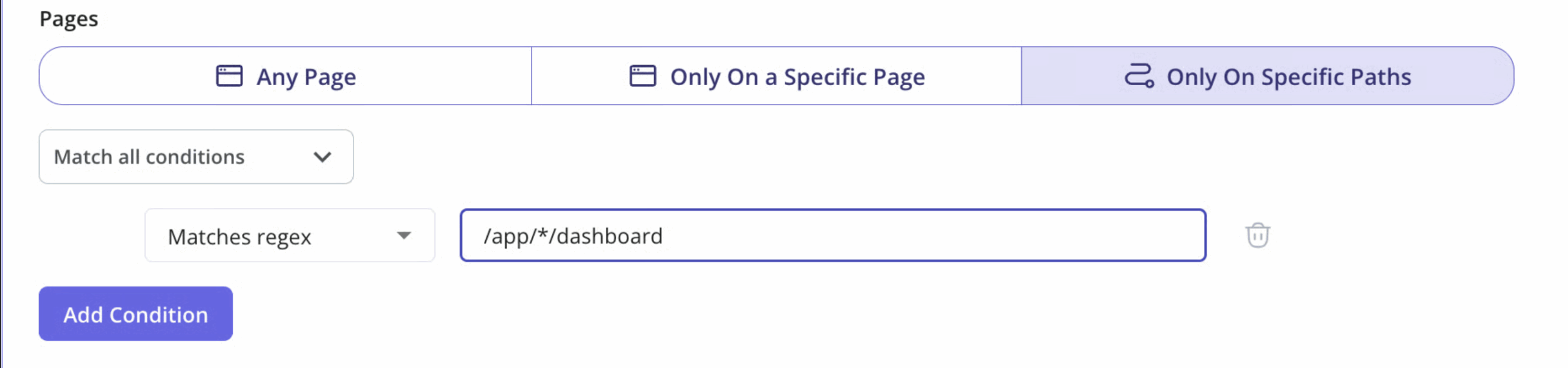
That regex option is the one worth learning properly. Most real SaaS products have URLs with account IDs or project slugs baked into the path, and without the asterisk you end up targeting exactly one customer’s page.
Audience targeting handles the second question, and it decides who sees each module.
- All Users (default).
- Only Me, meaning colleagues in your Userpilot account with the Chrome extension installed, which is what I use for testing.
- Saved Segment, a segment you defined on the Users page.
- Custom Conditions, which let you combine rules based on User Properties, Segments, Form Responses, Gear, Location, Flow Events, NPS Events, and Tracked Events.
Custom Conditions is where the Resource Center stops being a simple help menu. By combining user properties, tracked events, form responses, or Userpilot NPS events, you can show different resources to different users based on who they are and how they’ve interacted with your product, rather than giving everyone the same list of help content.

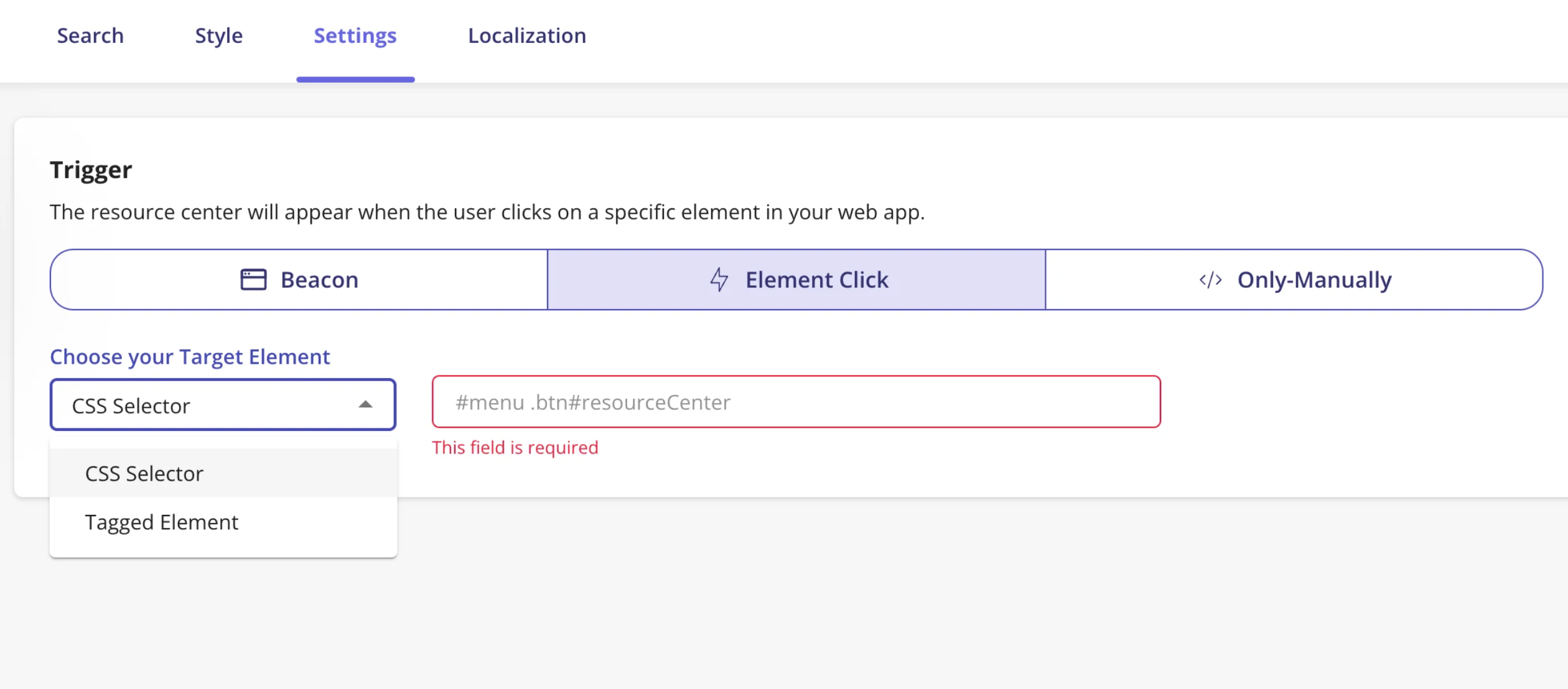
Then there are the three trigger modes, which decide how the widget opens in the first place. Most guides skip these entirely, and they change what the Resource Center can be used for.
| Trigger | How it works |
|---|---|
| Beacon | A button users click to open the Resource Center widget |
| Element Click | Opens when a user clicks a specific element in your app, targeted by CSS selector or by a Feature Tag you created |
| Only Manually | Opens via a shareable permalink, programmatically with JavaScript, or from other Userpilot content such as a checklist or flow step |
Element Click is the trigger I’d recommend for most teams. By attaching the Resource Center to your existing help icon or a feature users often struggle with, you surface help exactly where they expect to find it.
The honest fact from earlier belongs here too, because this is where it bites. If a user is eligible for none of your modules, the beacon does not render, so audience targeting is not only personalization, it decides whether the Resource Center appears at all.
Connecting your knowledge base to in-app search
The Help tab connects your external knowledge base to the Resource Center, so users search your support articles without leaving your application. Once search is enabled, you can configure it to pull from knowledge base articles, Home modules, and News posts together.
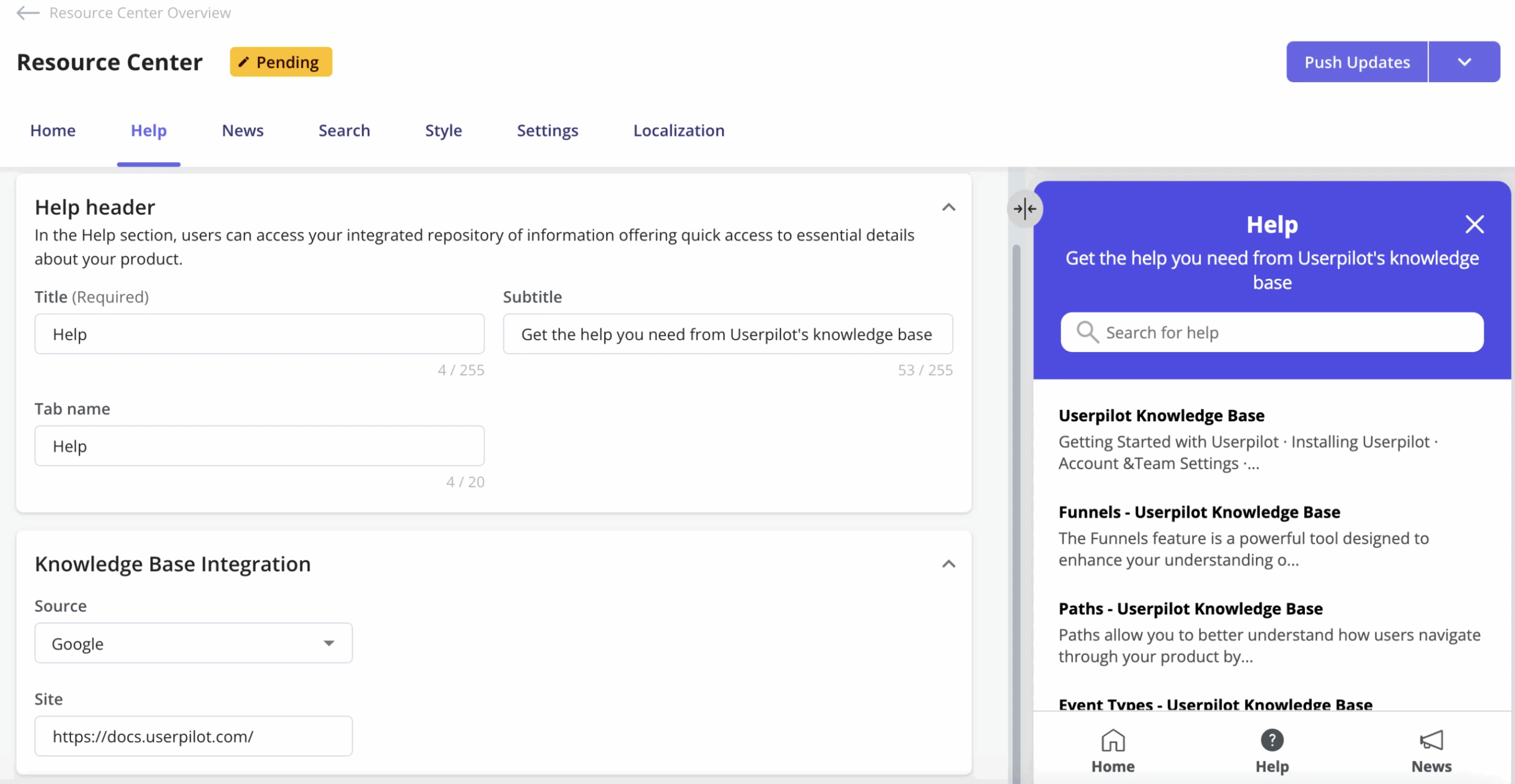
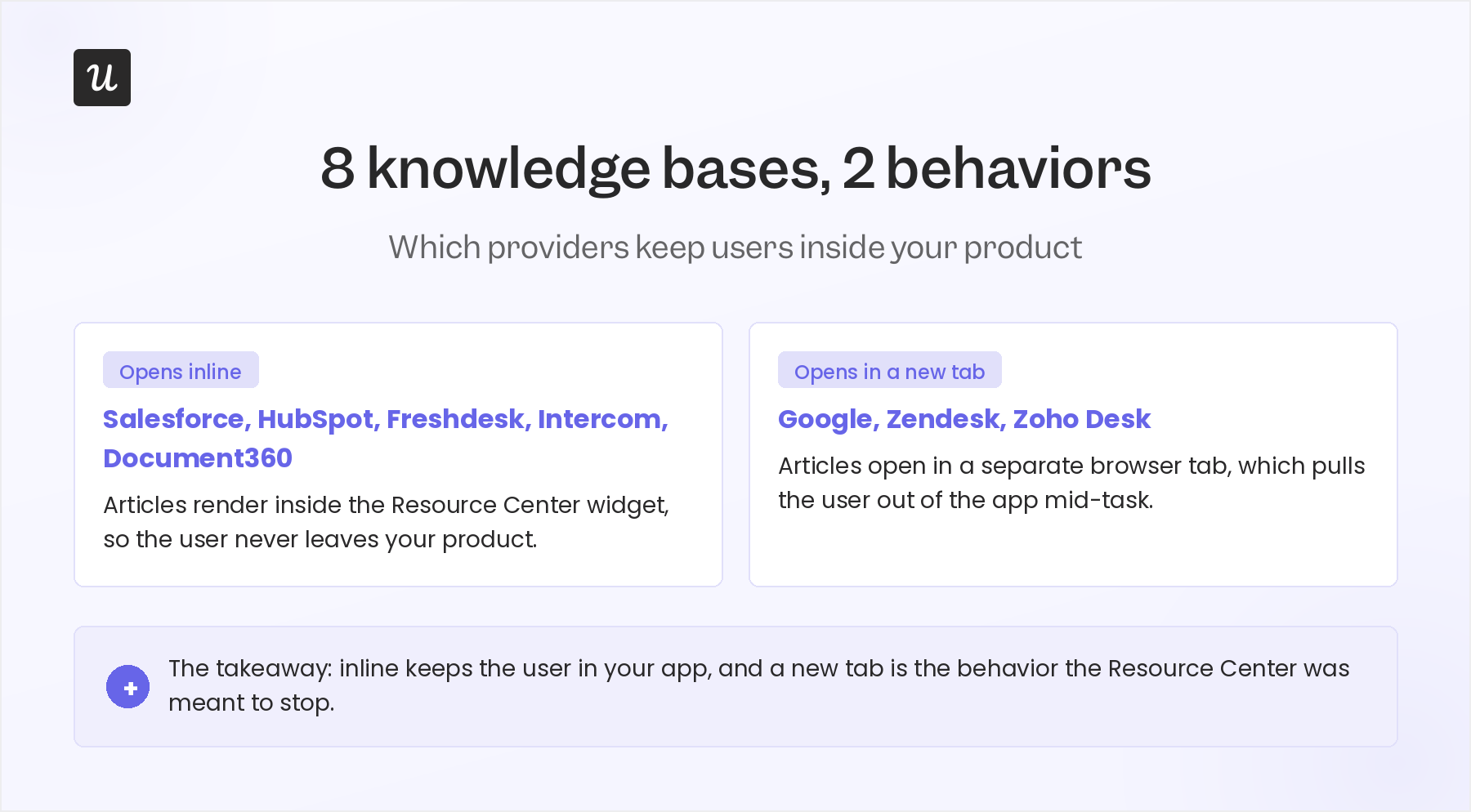
Eight providers are supported through Userpilot integrations, and how articles open depends on which one you use. Five render inline inside the widget, while three open in a new tab.
| Search provider | How articles open |
|---|---|
| Salesforce | Inline |
| HubSpot | Inline |
| Freshdesk | Inline |
| Intercom | Inline |
| Document360 | Inline |
| New tab | |
| Zendesk | New tab |
| Zoho Desk | New tab |
Inline matters more than it sounds. An article that opens in a new tab has pulled the user out of your product, which is the exact behavior the Resource Center was meant to stop.
For knowledge bases built on categories and sub-categories, such as Zendesk and Salesforce, Userpilot retrieves those as folders inside the Resource Center. A documentation library with a few hundred articles stays browsable instead of collapsing into one undifferentiated search box.
Now the setup constraints, which is the part competitor content tends to leave vague. These are real, they are documented, and every one of them has cost someone an afternoon.
- Search retrieves by domain, not by page: You can currently only specify a domain to retrieve documents from, and adding a specific page or URL is not yet supported.
- Password-secured knowledge bases are supported: Search now works against them, which used to be a hard blocker for teams with gated docs.
- Google requires your site to be indexed: Run a
site:yourdomain.comsearch first, and if nothing comes back, neither will the Resource Center. - Document360 needs the X-Frame options toggle turned off under Security settings, or articles will not load.
- Content Security Policy needs a whitelist entry: If your app runs a CSP, add
https://playground.userpilot.ioor results will not return. - Search engines localize results: Geography and other signals mean what you see during setup may differ from what a user in another country gets.
I list these because the alternative is a support team that thinks the feature is broken. Every one of these produces the same symptom, which is an empty search result with no error message.
Localizing the Resource Center for a global user base
Userpilot’s translation service lets you localize Resource Center content into other languages, so users get in-app help in the language they work in. With one-click AI translation, you can support 32+ languages without rebuilding your content.
Localization keys off a parameter. You pass a user property named locale_code following ISO 639-1 codes, or you rely on the default Browser_Language property that Userpilot tracks automatically. Whichever you choose, the Resource Center reads that value to decide which translation to serve.
There are two ways to produce the translations themselves:
- Automated: Userpilot’s built-in AI translation service translates your content into the languages you select. You can auto-translate everything at once or work field by field.
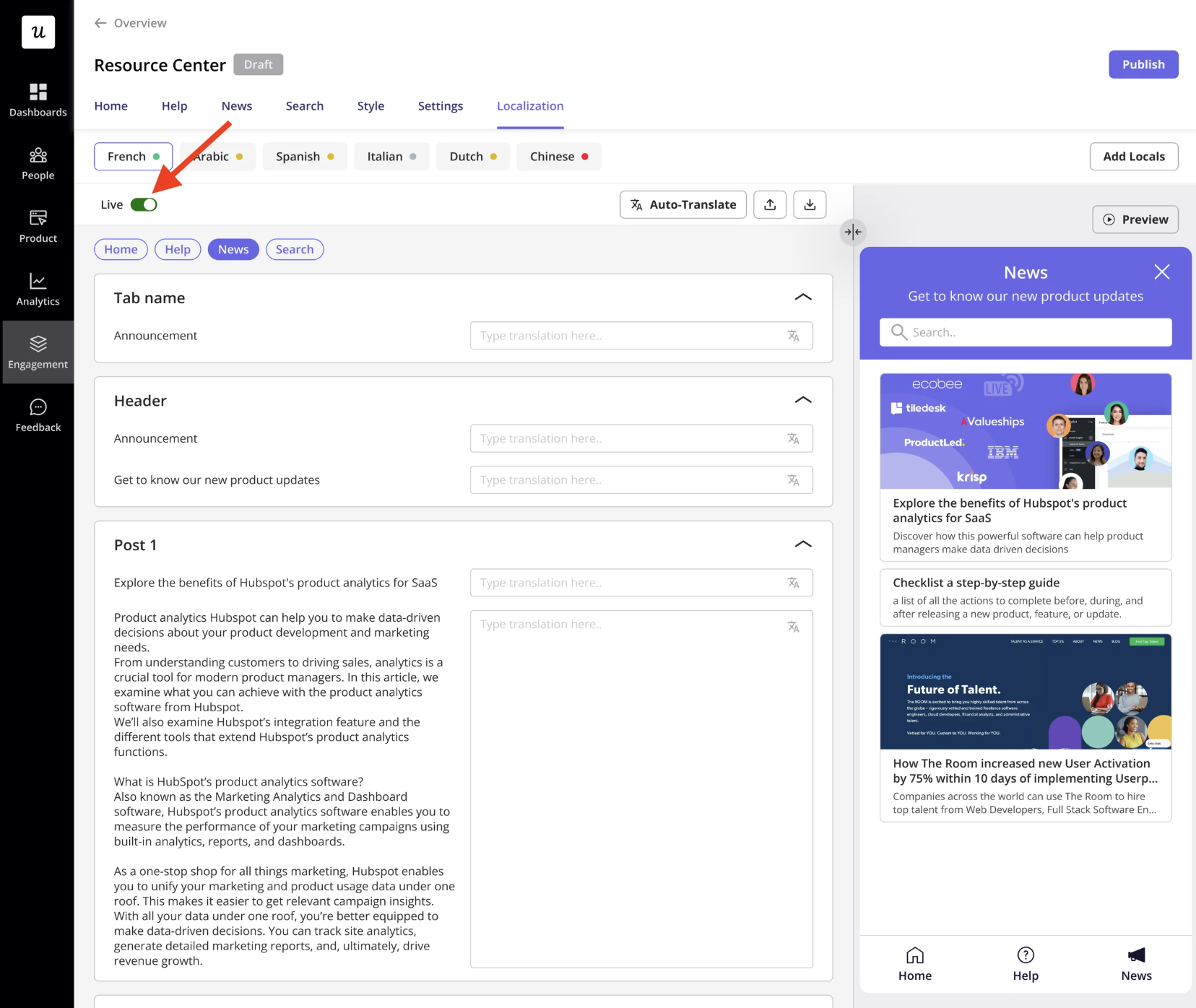
- Manual: Export the content as a CSV or XLIFF file, hand it to your localization team, and import it back.
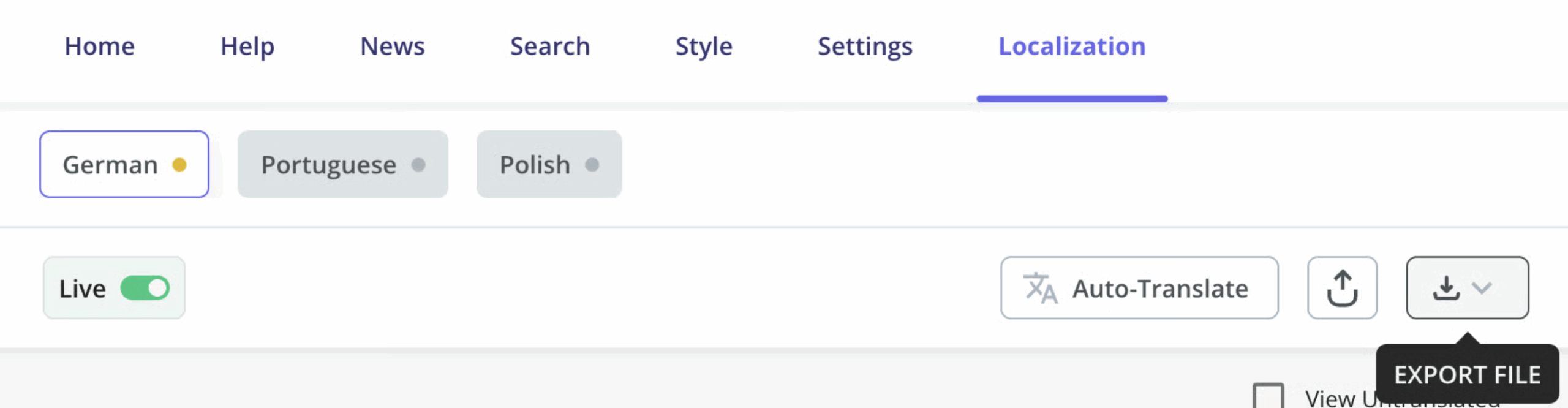
Two cautions in the documentation will save you real pain, and I’d read them before touching the tab. Switching between Automated and Manual wipes your translated content, so commit to one method before anyone invests hours in it.
The docs also recommend localizing only after your content is fully built, designed, and tested, since any change after translation means re-translating that content.
One small publishing detail is useful to recognize on screen. When the Resource Center is unpublished, you’ll see a Publish button, and when it’s already live, you’ll see a Push Updates button instead. If you’re wondering why your translation isn’t showing yet, that button is usually the answer.
Styling, testing, and publishing without surprises
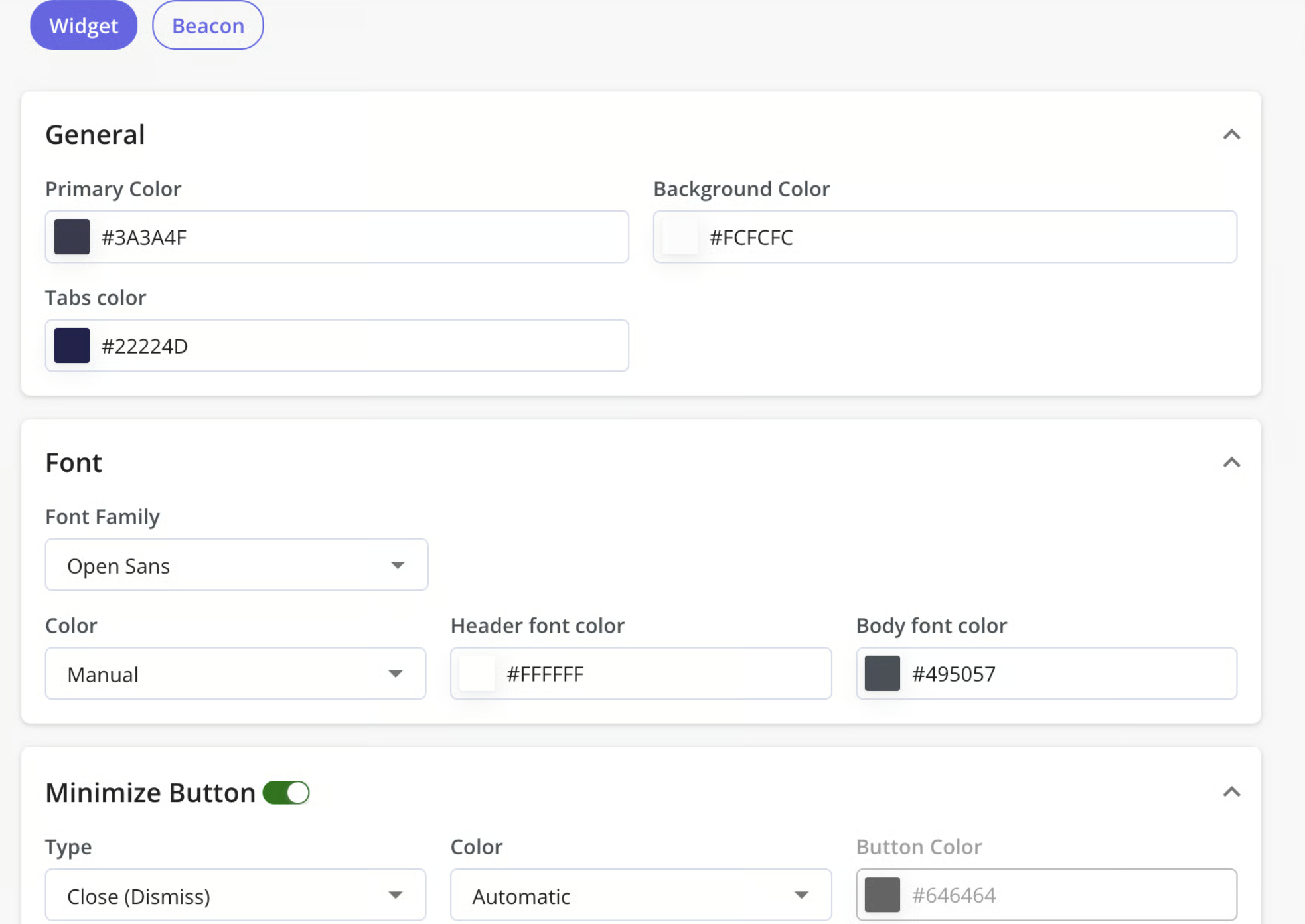
The Style tab for the Userpilot Resource Center splits into Widget and Beacon.
For the Widget, you control Primary Color (the top header), Background Color (the content section), Icon Color, Carets Color (the side arrows in each module), Font Family (any Google font), and Font Color. One documented quirk: you have to set the Color option to “Manual” before you can edit the text color.
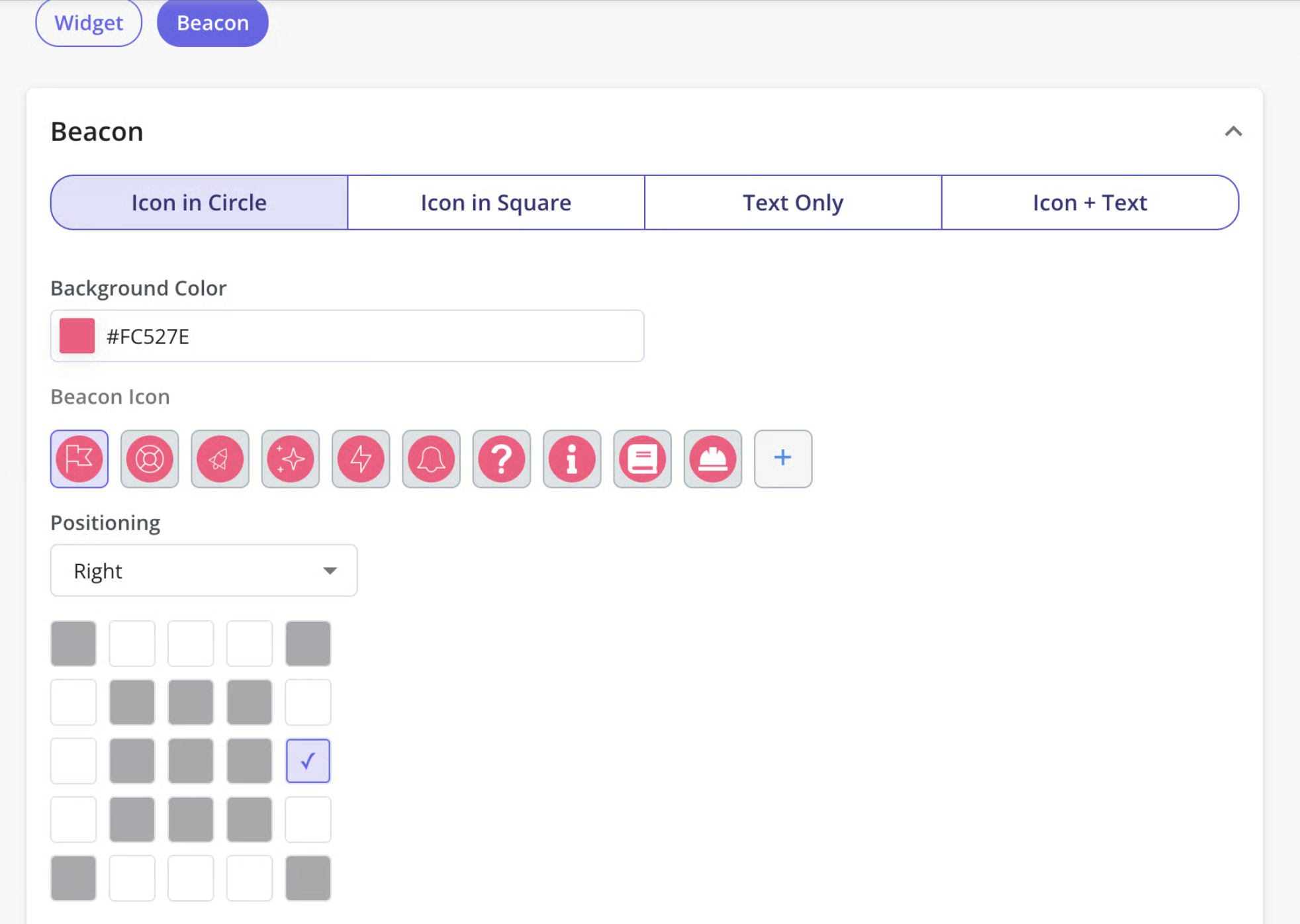
For the Beacon, you set background color, beacon type, custom beacon text and text color, position, icon, and a Corner Radius field that controls how rounded the corners are. Search customization lives in the same tab, where you choose which sources appear in results, meaning Help-tab articles, Home-tab modules, and News-tab posts. You can also rewrite the search text, the no-result page text, and the button text.
Testing is where I’d slow down. Userpilot gives you a preview on the right while you build, plus a live, interactive preview once you finish, and there are three documented ways to test safely before real users see anything:
- Set the audience to Only Me, so just you and colleagues with the Chrome extension see it.
- Publish to a staging environment by choosing “Domains I choose” under the Configure tab.
- Limit visibility to specific users by unique user ID, email, or name.
Once the testing looks right, widen the targeting to your real end-users and publish.
Here’s the thing that trips people up more than any styling setting: because the beacon hides when a user is eligible for no modules, you have to test with a user who genuinely matches your targeting rules. Test with an account that matches nothing, and a perfectly configured Resource Center will look broken.
Measuring whether the Resource Center helps
The Userpilot Resource Center includes an analytics dashboard for measuring engagement with your in-app help. You can review overall usage, module performance, and search activity to understand how people are using it.
The content metrics sit at two levels. The broad level gives you Unique Opens, which counts the number of unique times the Resource Center was opened so one overactive user doesn’t skew your read, alongside Modules Clicked. Drop down to the module or post level, and you get clicks plus the timestamp of the last click, so you can see which specific modules and News posts get used and which have gone stale.
Search analytics gives you the terms users entered and how many times each query was searched. Treat that list as a content backlog, because it’s the clearest signal you’ll get about which documentation is missing.
Now the argument, because a metrics list on its own doesn’t help anyone. A Resource Center either deflects tickets, or it doesn’t, and these two views are how you find out which. Rising Unique Opens alongside rising module clicks means users are self-serving, while opens with no clicks means they’re looking and leaving empty-handed.
The search report is the more actionable of the two. A term searched forty times with no good result means you are one article away from deflecting an entire category of tickets, and I’ve seen that single insight justify the setup effort on its own. Analytics is what turns the Resource Center from something you build once into something you improve.
What the Resource Center costs and which plans include it
The Userpilot Resource Center is available on the Growth and Enterprise plans, and it is not included on Starter. Here is how the relevant lines compare on the Userpilot pricing page.
| Starter | Growth | Enterprise | |
|---|---|---|---|
| Price | $299/mo | From $849/mo | Custom |
| Monthly active users | Up to 2,000 | 0 to 100k, includes 2k | Custom, includes 10k |
| Resource Center | Not included | Included | Included |
| Localization | Not available | 5 languages | Unlimited |
| Seats | 3 | 15 | Unlimited |
The useful framing for a buyer is that the Resource Center comes with the Growth plan rather than as a separate add-on. Your decision is whether you’re on Growth or above, not whether to buy this feature on its own.
One gate touches this feature directly, and it’s the localization cap. Growth gives you 5 languages, and Enterprise gives you unlimited, which becomes the deciding factor the moment you support more than five markets.
How real SaaS teams use the Resource Center
Two customer examples show the same feature behaving completely differently, which is the contextual-support point in practice rather than a logo parade.
Osano, a data privacy platform, built an on-brand Resource Center with modules covering videos, documentation, and a contact option. The team then moved its support-chat trigger into the Resource Center, so users first reach a page carrying relevant documentation and proactive tips before they can start a chat. That ordering is the whole design: help gets one attempt before a human does.
The numbers held up. One support article addressed around 90% of the questions asked on its page, and Osano recorded a 25% reduction in tickets and chat requests, cutting support costs while letting users self-serve. Arlo Gilbert, founder and CEO of Osano, described it in the full Osano case study:
“We have seen a substantial decrease in repeated questions once we implemented the Resource Center. Since moving our support chat trigger to the Resource Center, the user needs to first reach a certain page where they can find relevant documentation, proactive tips, etc.”
Groupize, a meeting and events management platform, took a different route, documented in the Groupize gamification case study. The team integrated its interactive assistant, G.G., with the Resource Center, letting users trigger step-by-step guided tours of individual pages on demand instead of having content pushed at them. That gamified onboarding earned Groupize a nomination for the Skift Idea Awards 2022.
The documented outcome there is a change in the shape of support tickets. According to Justin Peticolas, Manager of Implementation and Onboarding at Groupize, users now treat G.G. and the learning center as a first line of defense, so the tickets that reach the team are more focused and specific, which frees his CS team for questions that genuinely need a human.
Both teams run the same feature. Osano uses page targeting to put the right article in front of users before they escalate, while Groupize uses on-demand triggering to let users pull guidance when they want it, and the difference between those two outcomes is configuration rather than product.
Turn your best answers into in-app self-service
Your team has already written the answers. They sit in help articles, in interactive walkthroughs, and in the replies your support agents send twenty times a month, and the reason users keep asking anyway is that none of it lives where the question happens.
The Userpilot Resource Center puts that content inside the product, scoped by module to the page and the segment where it’s relevant, which is the difference between a help widget and self-service that works.
If you want to see how it would map onto your product and your documentation, book a Userpilot demo and we’ll walk through the setup together.
FAQ
Which plans include the Userpilot Resource Center?
Growth and Enterprise. It is not available on the Starter plan.
Which knowledge base providers can I connect for search?
Zendesk, Salesforce, Google, HubSpot, Freshdesk, Intercom, Document360, and Zoho Desk. Salesforce, HubSpot, Freshdesk, Intercom, and Document360 articles open inline, while Google, Zendesk, and Zoho Desk open in a new tab.
Can I show different help content to different users?
Yes, and targeting is set per module, by page and by audience, so each module can appear for a specific segment on specific paths. If a user is eligible for no modules, the beacon does not appear.
How does localization work?
You pass a locale_code property, or use the default browser language, then translate automatically with AI or manually via CSV or XLIFF export. The product supports 32 or more languages.
How do I open the Resource Center?
Three ways: a beacon button, a click on a specific element in your app, or manually via a permalink, JavaScript, or another piece of Userpilot content.
About the author