PostHog Autocapture in 2026: What It Tracks and What It Costs You

PostHog autocapture starts collecting user interactions as soon as the web SDK loads. Without manually instrumenting every action, you can begin seeing page views, clicks, form submissions, and other behavioral signals in your product analytics event stream.
That speed is its main appeal, and its biggest drawback.
Autocapture can generate far more data than you need, including repeated interactions, noisy properties, and events that increase volume without answering a useful product question. The consequences show up in both the event list and the bill. Product analytics includes a monthly free allowance, but additional usage is metered, while features such as session replay follow separate limits.
The real challenge is knowing what PostHog collects, what contributes to usage, and when a manually defined event will give you cleaner, more useful data. I’m here to show you how to make those decisions so you can keep the convenience without inheriting unnecessary noise or cost.
What does PostHog autocapture track?
PostHog uses its frontend and mobile SDKs to collect several types of client-side activity automatically from your web app or mobile app, one piece of its broader product analytics platform. Activity that happens only on your server still requires separate server-side tracking.
9 Types of data PostHog can capture automatically
Across its SDKs, PostHog can automatically collect nine broad types of client-side data, ranging from element interactions and page navigation to performance signals and mobile lifecycle events:
- Interactions: Captures clicks on links, buttons, and user inputs such as forms, selects, text areas, and labels. It can also detect form submissions, field changes, and edits within
contenteditableelements. - Navigation: Records
$pageviewand$pageleaveevents as a user navigates from page to page. - Clipboard activity: Detects copy and cut actions and records the text selected at that moment. It does not capture pasted content and excludes password fields.
- Heatmap data: Collects clicks, mouse movements, and scrolling to show where users interact with your product most, displayed in heatmaps rather than as individual analytics events.
- Dead clicks: Detects clicks that don’t produce a visible page change or other expected response, helping you identify elements users may mistakenly believe are interactive.
- Exceptions: Captures uncaught errors in your application. Errors your application handles internally may still need to be reported manually.
- Sessions: Records real user behavior for playback in session replay, configured and metered separately from product analytics events.
- Web vitals: Collects browser-performance signals such as Largest Contentful Paint, Interaction to Next Paint, Cumulative Layout Shift, and First Contentful Paint.
- Lifecycle events: On supported mobile SDKs, tracks events such as app installation, updates, launches, and movement between foreground and background states.
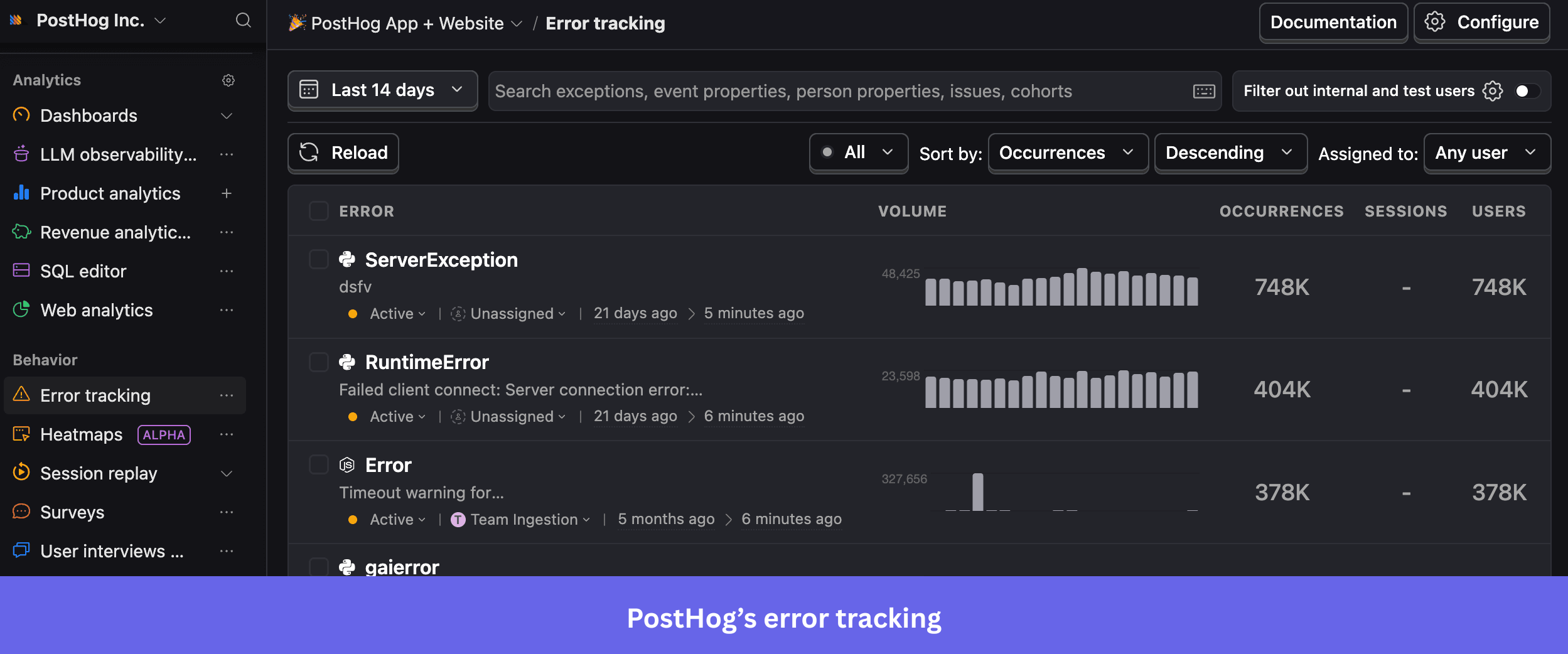
Beyond the event stream, captured exceptions also feed PostHog’s dedicated error tracking product, where teams can review them alongside the surrounding product and session context.
PostHog handles rage clicks within interaction tracking. It fires a $rageclick event when a user clicks in quick succession, specifically three clicks that each land within 30 pixels and 1 second of the one before, though all three thresholds are configurable. Regular interaction events also include context such as the browser, operating system, current URL, and details about the element clicked.
How mobile autocapture differs by platform
Mobile tracking defaults and capabilities vary by SDK:
- iOS: Automatically captures screen views, tracked under a screen-name property, and lifecycle events, while element interactions must be enabled separately.
- Android: Captures navigation, lifecycle events, and deep links by default, but does not automatically track every arbitrary tap or gesture.
- React Native: Supports interaction autocapture and navigation and lifecycle autocapture, but the SDK ships with autocapture disabled by default until you turn it on in the configuration.
- Flutter: Also requires you to enable autocapture through the SDK configuration before it starts capturing events.
How PostHog autocapture works
PostHog reads a limited set of details about the element a user interacts with, while excluding the text or values entered into form fields by default. Once the tracking script is installed on your site, it’s enabled by default and starts sending that data to PostHog automatically.
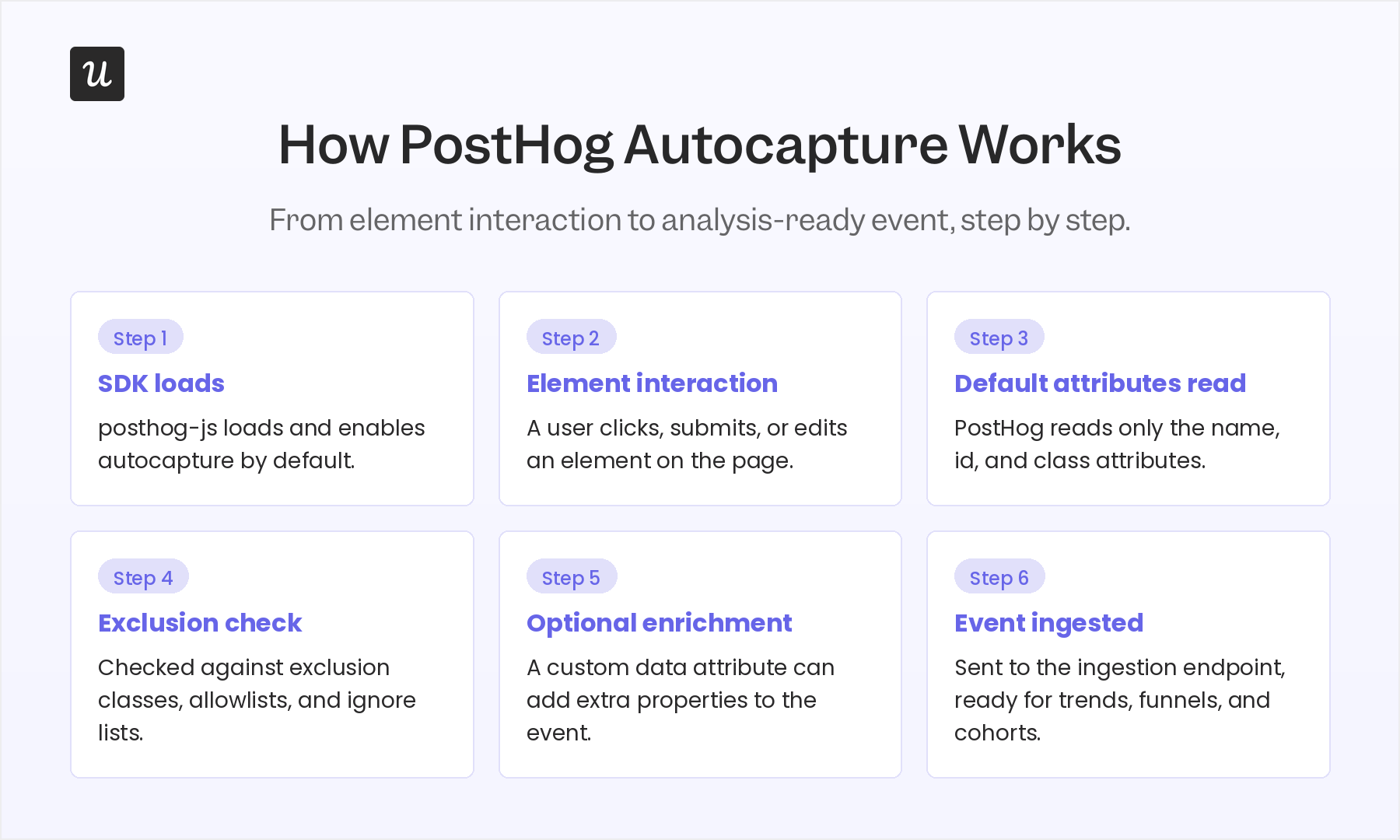
You can narrow its scope further by excluding specific elements or limiting where autocapture runs. PostHog lets you exclude elements from tracking or set up allow and ignore lists for specific pages, so autocapture only runs where you want it to rather than site-wide.
You can also add useful context to an autocaptured interaction, such as the product ID or price connected to an “Add to cart” click. This makes the event easier to analyze without collecting what the user typed into the form.
Properties like these stay tied to the single autocaptured event they ride along with. Person properties work differently, describing the user across every event through PostHog’s user identification system, rather than one action. PostHog recommends identifying a user as soon as they log in, so any activity already captured under an anonymous ID gets correctly attached to their profile.
Once captured, these interactions appear in PostHog’s activity log with plain-language descriptions, making it easier to review what happened before using the events in analysis.
What happens when you disable PostHog autocapture?
Turning off interaction autocapture disables automatic element-interaction events only. It does not automatically stop pageviews, page-leave events, exception capture, heatmaps, or session recordings; each of those has its own switch.
You can turn interaction autocapture, heatmaps, and dead clicks on or off directly in your PostHog project settings, without touching code. This is the faster option for a quick test. To stop navigation events specifically, you need to disable pageview and page-leave tracking separately in your project configuration. Session recording and the other collection features have their own settings, which you can update any time after installation.
Single-page applications previously required teams to send a manual pageview event after every route change. PostHog can now handle this automatically instead, recording a pageview whenever the page’s content changes without a full reload.
How PostHog turns autocaptured events into analysis
Once the event reaches PostHog, you can use it to measure behavior, investigate drop-off, target feedback, or run more detailed analysis. Here’s how autocaptured events feed into the platform’s main analytics workflows:
Build reports and dashboards
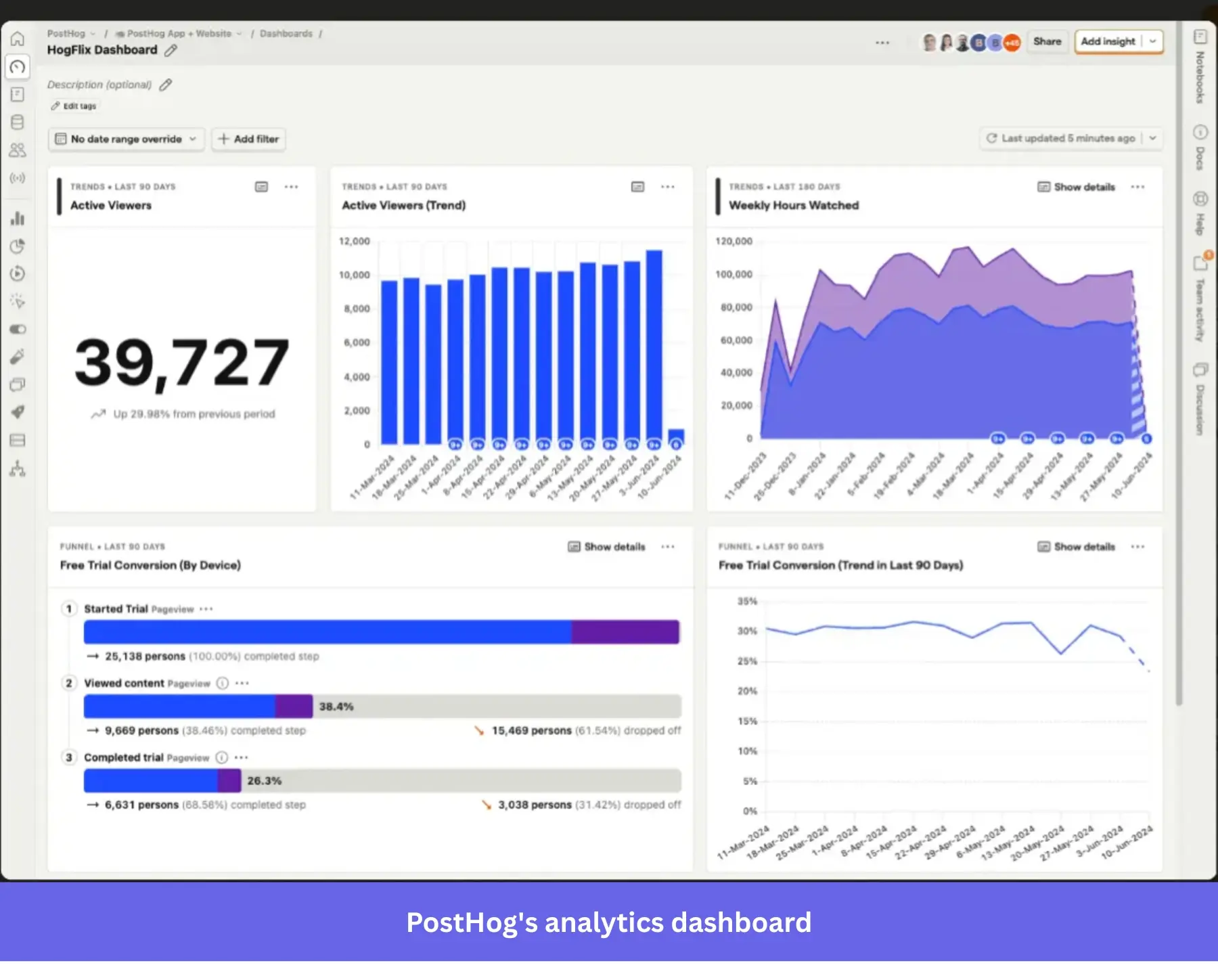
You can use autocaptured events in trends, dashboards, and other reports to show how often an interaction occurs and how usage changes over time.
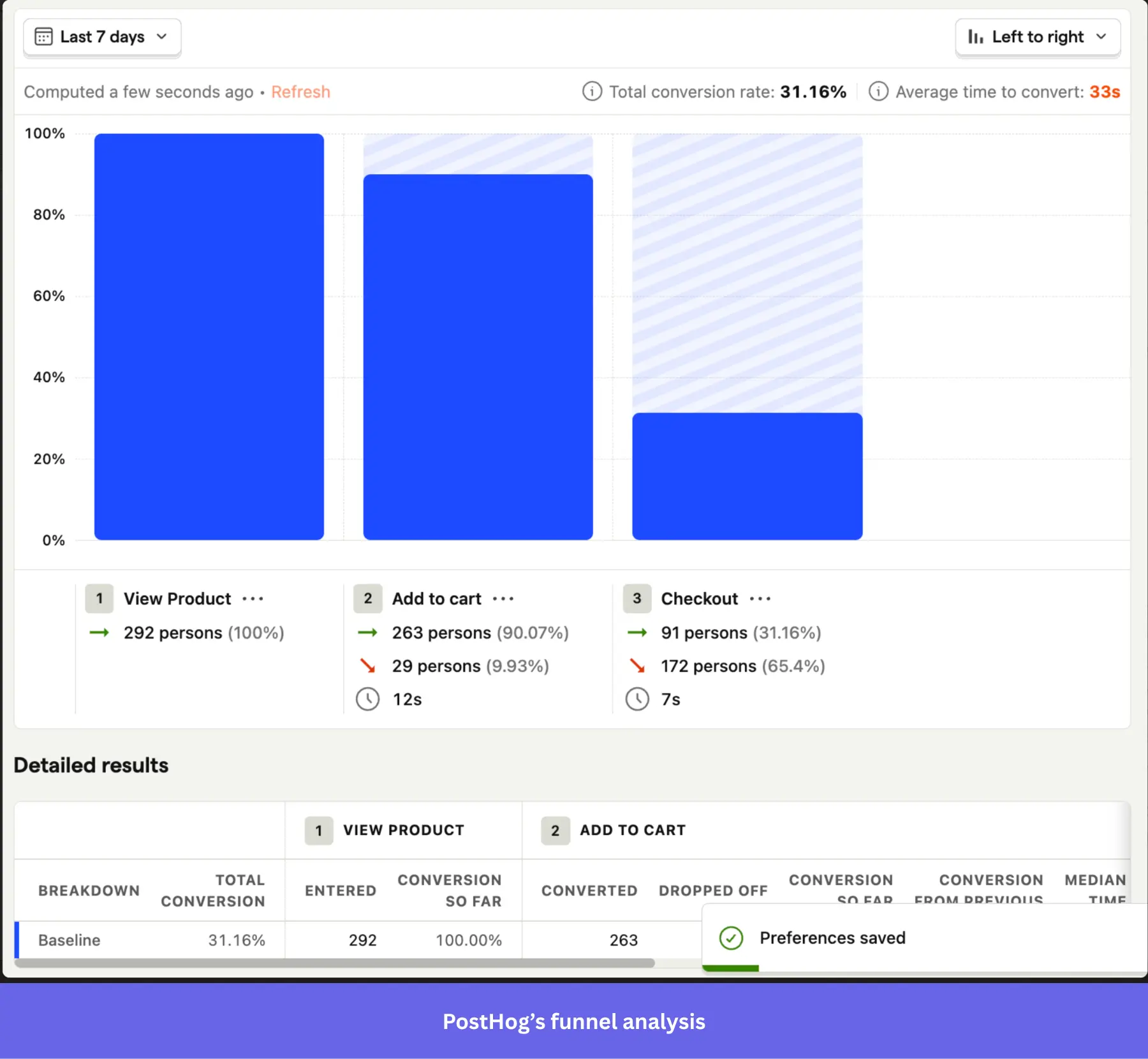
Measure conversion with funnels
You can place captured events into funnel analysis to see how users progress through a workflow and where they abandon it. The challenge is that automatically captured clicks often need clearer labels before the funnel is readable.
Target surveys using product behavior
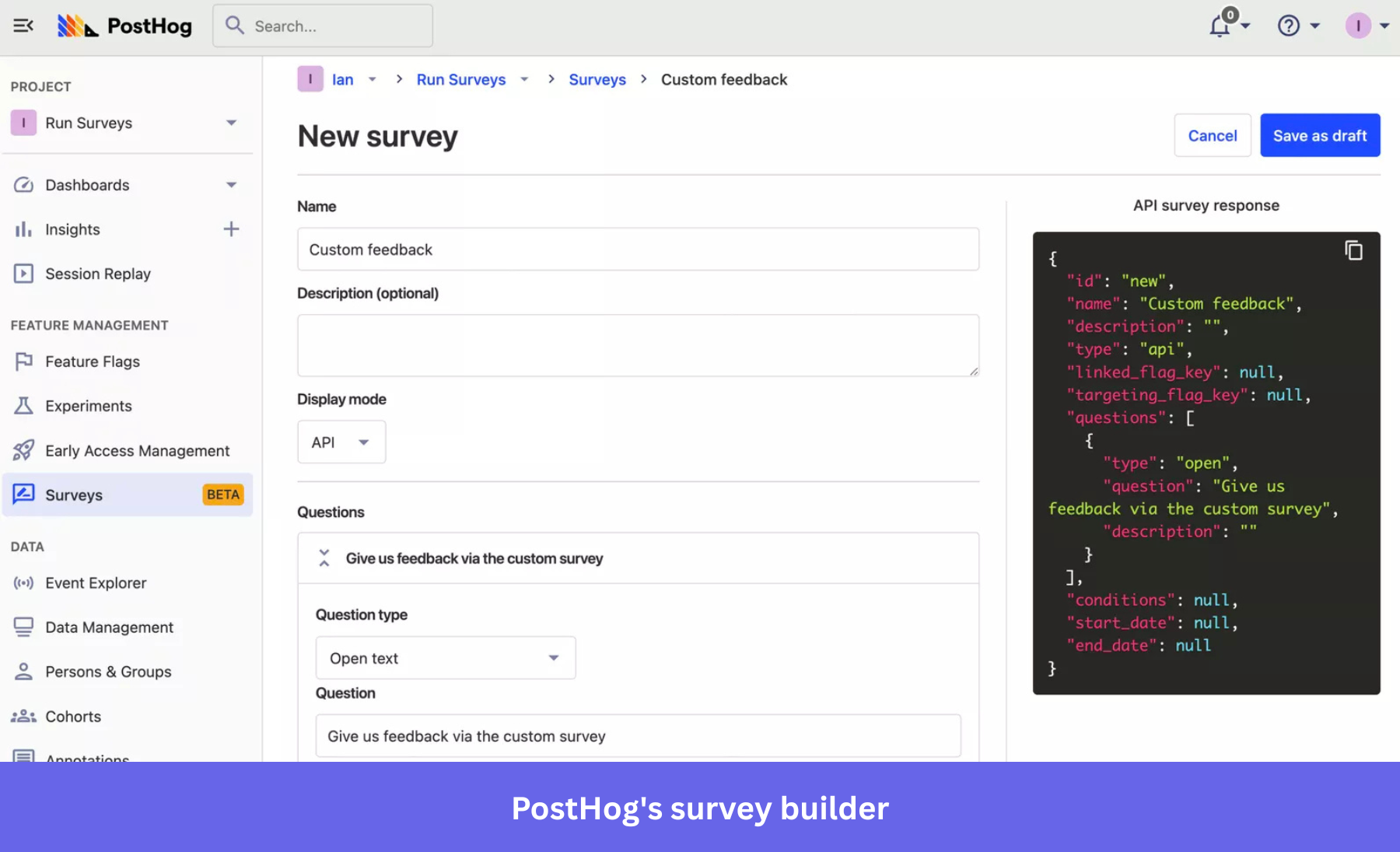
You can show PostHog surveys to selected users based on properties and product behavior. This allows you to ask for customer feedback after a relevant action rather than surveying everyone.
Query the underlying data with HogQL
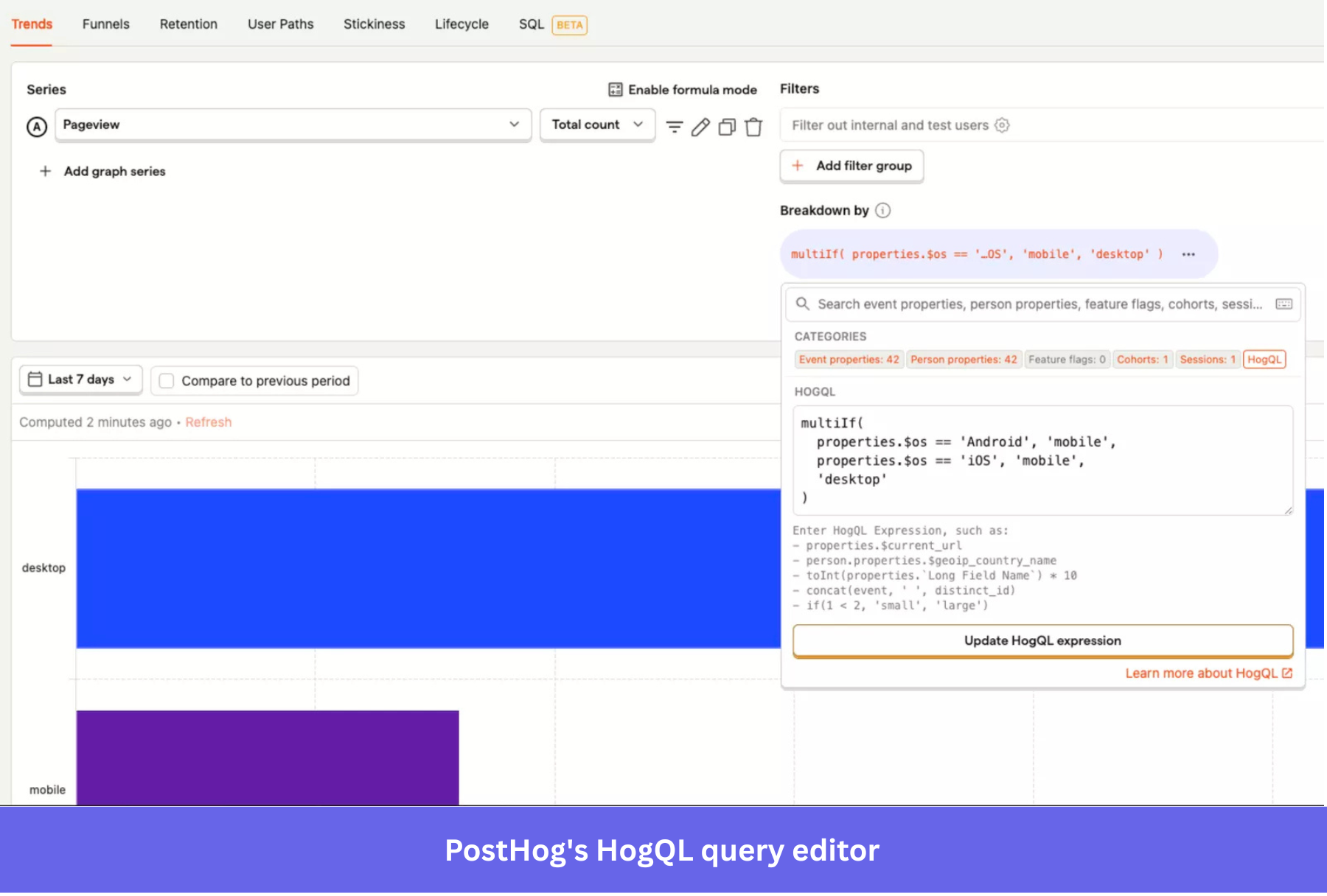
When standard reports are not flexible enough, technical users can query PostHog data with HogQL. This provides more control, but it also reinforces PostHog’s technical orientation.
In Userpilot, product and growth teams can label captured interactions without code, analyze them in reports, and use the same behavior to build segments or trigger in-app experiences. This reduces the need to route every new tracking or engagement question through engineering.
PostHog autocapture’s trade-off and what it costs you
PostHog includes 1 million free product analytics events each month. After that, anonymous events, generated by anonymous users before you identify them, start at $0.00005 each, and identified events, created after you identify users, start at $0.000248 each, with both rates decreasing at higher volumes. Dead-click coordinates used for heatmaps are free, but turning on dead-click autocapture for deeper analysis prices each one as a standard event.
Autocapture doesn’t carry a separate fee. The risk is that it can generate billable volume faster than manual instrumentation because it records interactions whether or not you ever use them in an insight, funnel, or dashboard. High-traffic pages, repeated clicks, and low-value interactions can eat into the free allowance right alongside the events that matter.
That same volume can also make PostHog harder to manage. As the event list and its properties grow, finding the right signal takes a more deliberate tracking strategy. One verified G2 reviewer said managing events can start to feel overwhelming as tracked volume increases:
“Also, although PostHog is very cost-effective compared to many other analytics platforms, certain advanced capabilities and higher usage volumes can still drive costs up as the product scales. Because of that, teams need to plan their event-tracking strategy carefully.”
How to limit events in PostHog autocapture
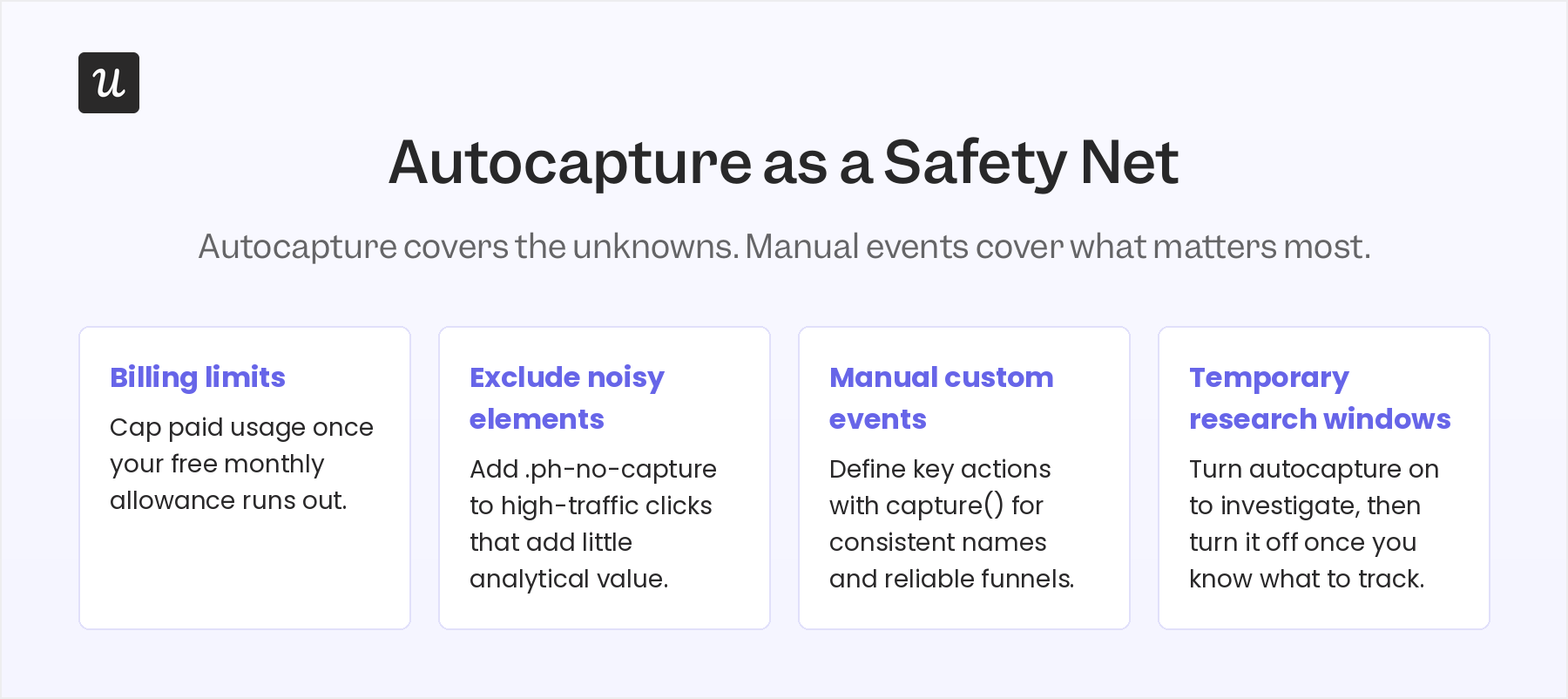
The fact that PostHog autocapture can charge you for too many events doesn’t mean disabling it outright is the best approach. I suggest pairing it with manual instrumentation: let autocapture investigate unexpected behavior and fill gaps, defining manual events for activation steps, conversions, and anything else on a key funnel.
Avoid a large, expensive event stream that can’t answer your product questions. You can use these controls to keep autocapture’s coverage without letting unnecessary events inflate usage:
- Exclude noisy elements: Stop collecting frequent clicks that add little analytical value.
- Define a specific event manually: Give activation, conversion, and funnel events consistent names and properties.
- Set billing limits for product analytics: Cap paid usage so unexpected event volume cannot create an open-ended bill.
- Use autocapture temporarily: Run it during a defined investigation, then narrow the scope once you know which signals matter.
How Userpilot takes a different approach to pricing
PostHog’s usage-based model gives you generous free allowances, but your eventual cost depends on how much data each product collects. Product analytics events, session recordings, feature-flag requests, and other capabilities have separate meters, so forecasting the total becomes harder as usage grows across the platform. Userpilot takes a totally different approach to pricing.
Instead of forcing you to track clicks, form interactions, and labeled events, our pricing is based on a single clear metric: monthly active users. That translates into predictable pricing and a clear relationship between product growth and analytics cost. Instead of paying more because your users are more active, you pay more when your user base has significantly grown.
| Feature | PostHog | Userpilot |
|---|---|---|
| Best for | Product engineers and technical product teams. | Product, growth, marketing, and customer success teams seeking no-code workflows. |
| Ease of use | Offers no-code analysis tools, but setup and advanced use can require technical knowledge. | Designed for no-code analytics and in-app engagement after installation. |
| In-app guidance | Does not provide native onboarding flows or product tours. | Supports flows, tooltips, checklists, banners, spotlights, and other in-app experiences. |
| Product analytics and autocapture | Includes autocapture, funnels, trends, paths, retention, dashboards, and advanced querying. | Includes no-code event labeling, trends, funnels, retention, paths, and dashboards on supported plans. |
| Surveys | Includes in-product surveys. | Supports NPS, CES, CSAT, and custom in-app surveys. |
| Session replay | Available with a separate usage allowance and event-based product pricing. | Available as an add-on on Growth and Enterprise plans. |
| Feature flags, experiments, and error tracking | Includes developer-focused feature flags, experimentation, and error tracking. | Supports in-app content experimentation, but not developer feature flags or application error tracking. |
| Company-level analysis | Supports groups, subject to the applicable product configuration and pricing. | Supports user and company profiles and company-level segmentation. |
| Email and resource center | Does not offer a native in-app resource center; workflows can send messages through connected destinations. | Offers email engagement and a native resource center on Growth and above. |
| Supported platforms | Web and native mobile SDKs. | Web, plus native iOS and Android engagement through applicable mobile plans or add-ons; mobile autocapture is not yet available. |
| Pricing model | Usage-based, with separate free allowances and rates for individual products. | Subscription pricing based primarily on monthly active users; some capabilities are plan-specific or add-ons. |
With Userpilot, you can still autocapture frontend interactions, label the ones worth analyzing without code, and use them in reports, segments, and in-app experiences. Investigating more behavior doesn’t independently add another batch of product analytics events to your bill, since cost tracks your user base instead.
Amplemarket illustrates how this works in practice. Before adopting Userpilot, the AI-powered sales platform used PostHog for session replay, Bento for in-app engagement, and an internally developed event-tracking solution. Labeling a new event through its previous process required engineering support and could take one to two weeks.
After switching to Userpilot, Amplemarket’s product team could label a new autocaptured event in about five minutes and analyze in-app behavior immediately after releasing a feature. The team then used those insights to deliver targeted guides and nudges, which increased adoption of new features by 5 to 10x.
“We improved feature adoption and new customer education, greatly reduced the time from implementing a feature to tracking its usage, and tightened our feedback loop.”
— Awni Shamah, Staff Product Manager at Amplemarket
Book a demo to see how MAU-based pricing and no-code event labeling can give your team clearer analytics without making every new interaction another variable in your bill.
FAQ
Does PostHog autocapture pasted text?
No, because PostHog’s clipboard autocapture covers copy and cut actions rather than paste events. When a user copies or cuts content, PostHog can record the text the user selects and excludes text from password fields.
Does turning off Userpilot's autocapture stop all event tracking?
No, because turning off Userpilot’s autocapture under Data Capture and Privacy stops the automatic collection of raw frontend events, including clicks, text input changes, and form submissions. It doesn’t disable manually tracked events. Session Replay also has its own toggle, so switching off autocapture doesn’t automatically stop session recording.
Is Userpilot's autocapture available on mobile?
Not yet, though Userpilot currently supports mobile onboarding and in-app engagement through its native iOS and Android SDKs, while mobile autocapture is coming soon.
How do I prevent Userpilot's autocapture from tracking sensitive fields?
Userpilot’s Data Capture and Privacy settings let you exclude specific elements from capture and remove attributes such as value or placeholder, keeping sensitive data out of your raw events. You can also mask element text in Session Replay so sensitive content remains hidden while the surrounding interface stays visible. Domain restrictions provide another layer of control. For example, you can exclude authentication or billing pages, though this may prevent both raw events and session data from being collected on those domains.
Does PostHog autocapture slow down your site?
PostHog’s JavaScript SDK queues and batches events rather than sending a separate request immediately after every interaction. Autocapture still adds client-side listeners and processing, so its impact depends on your application, traffic, SDK configuration, and the other PostHog features running alongside it. Session Replay has its own recorder and configuration. Test site performance with each feature enabled, then disable, exclude, or sample any collection you don’t need.
About the author