Userpilot Mobile Guide: Features, Pricing, and Use Cases

Userpilot Mobile, like every mobile adoption tool, sells itself on no-code speed. The catch is that the speed only starts after an engineer installs an SDK, and most teams find that out a sprint too late. I’ve sat in the planning meeting where a product manager asks for mobile onboarding and gets a sprint count back instead of a start date.
That gap is where mobile tools get bought and then quietly abandoned. A team is told it will never need engineering, then hits a wall before anything ships.
So I want to be straight about how Userpilot Mobile works. The install is a real engineering task with real minimum versions; it happens once, and everything after it belongs to the product team. This page names every engineering touchpoint instead of selling around them, because the teams who understand that trade before they buy are the ones who ship.
What Userpilot Mobile does?
Userpilot Mobile is a no-code mobile engagement layer that ships as an SDK, and it’s part of the wider Userpilot platform. It’s built to onboard, engage, and retain users on native mobile apps through in-app messages, push notifications, and surveys, all backed by analytics.
Now the honest turn, and it’s the whole reason this page exists. Every page of Userpilot’s Mobile Content docs opens with the same prerequisite: you install the Userpilot SDK before anything works. The install is what enables carousels, slideouts, and push notifications, what lets you track behavior and attributes through events and mobile screens, and what makes content targeting and triggering possible in the first place.
No-code begins on the other side of that install, and the install happens once. Rather than sell around that, I’m going to name every engineering touchpoint in this guide so you can plan for it. If you want the onboarding-specific version of this story, we wrote one here.
The proof that the ongoing cost really is close to zero arrived in May 2026 with Mobile Screen Auto-Capture. Userpilot can now detect screens in your mobile app automatically through the SDK, which cuts the need to manually track each screen through code. Userpilot’s own release note calls it especially helpful if you want to reduce engineering dependency when setting up mobile screen tracking.
Once engineering enables it, captured screens show up under Data, then Mobile Screens, then Untagged Screens, where your product team reviews, tags, and organizes them. Tagging a screen is what lets you trigger mobile experiences on specific screens, target users based on where they are in the app, analyze screen-level performance, and build more accurate reports and segments. That work sits entirely with the product team, no ticket required.
What can you build with Userpilot mobile?
Mobile content in Userpilot comes in three shapes: mobile carousels, slideouts, and push notifications. Surveys and NPS run on mobile too, through the feedback side of the platform, and you can launch any survey type in your mobile app, including NPS, CSAT, and CES.
Creating mobile content follows the same workflow regardless of the format:
- Go to Engagement → Mobile.
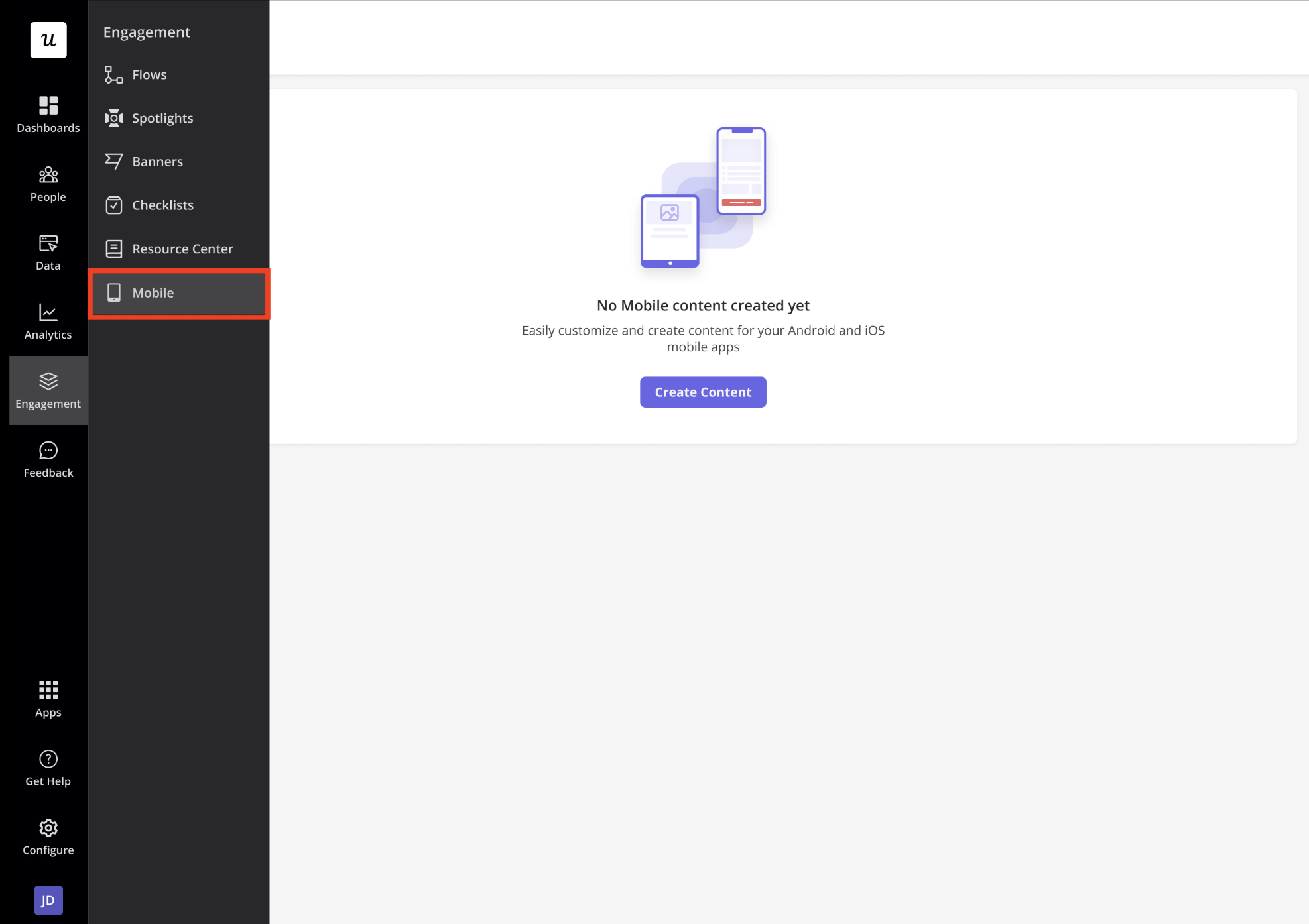
- Click Create Content.
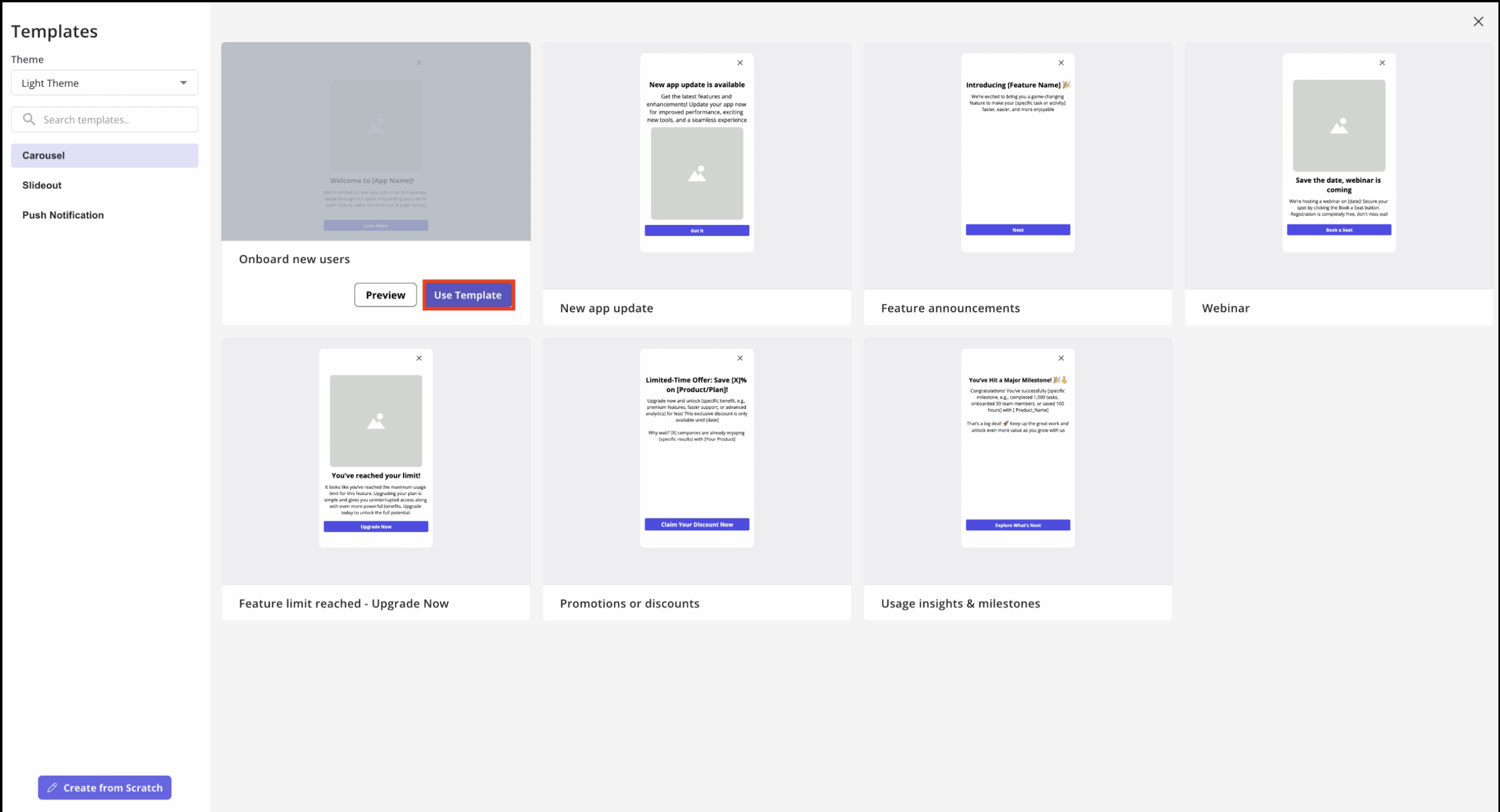
- Choose whether to start from scratch or use a template.
- After creating the content, go to Configure → Themes to apply a Mobile Theme with consistent colors, fonts, buttons, and styling across all your mobile experiences.
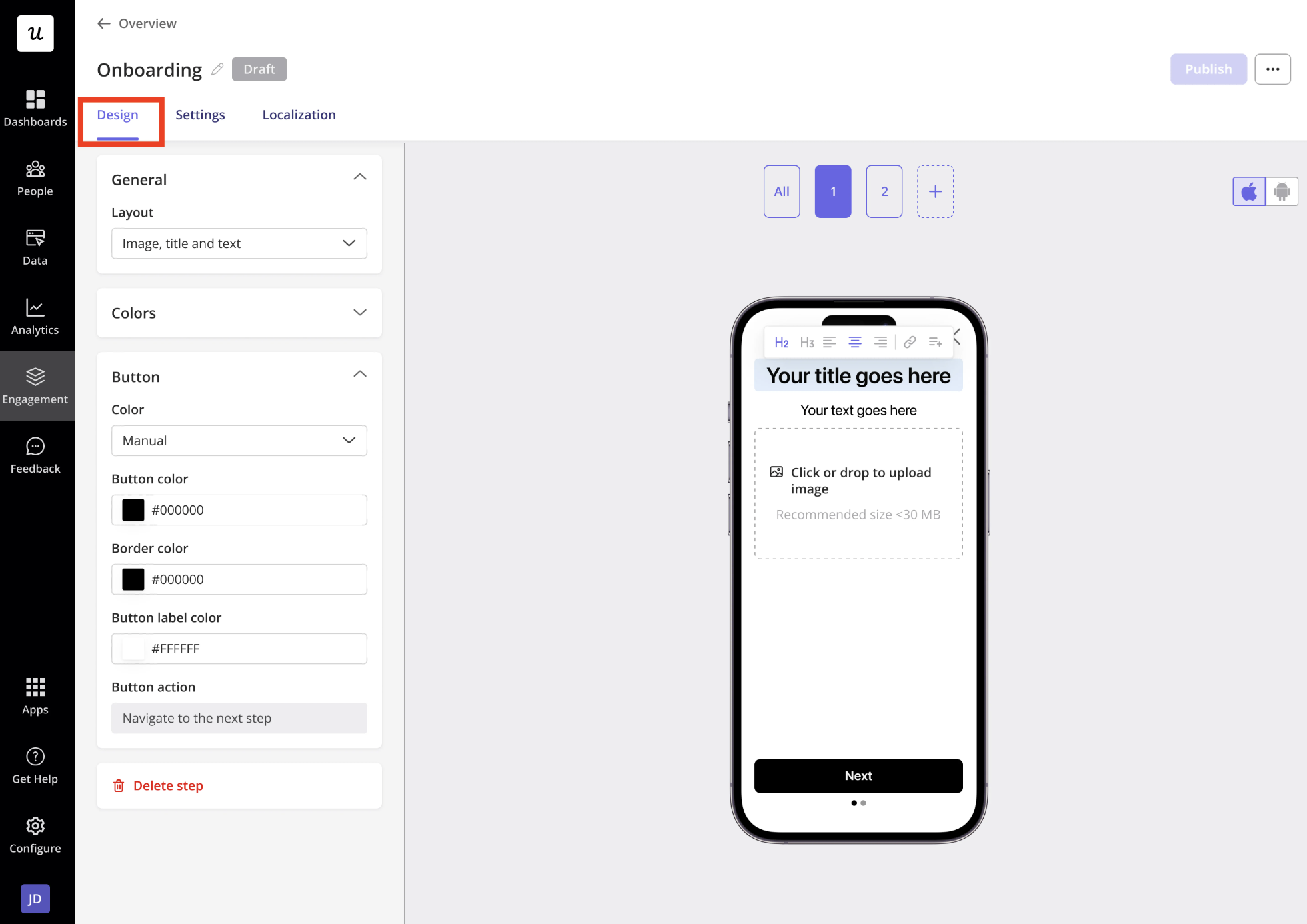
Here’s how the three content types compare across the features that matter most when you’re building.
| Carousel | Slideout | Push notification | |
|---|---|---|---|
| What it is | Multi-screen flow that takes over the entire display | Single-step overlay over part of the screen | OS-level notification on iOS and Android, delivered even when the user isn’t in the app |
| Screens | Up to 10 | One | One |
| Placement | Full-screen, content aligned top or middle | Center or bottom | Device notification tray |
| Button actions | Every screen except the last supports Next step only; the last screen, or a single-screen carousel, can Close or open a deep link, which accepts a URL | Close or open a deep link in the app | Open the app (the default, needing no extra configuration) or deep link |
| Media | Images with alt text, Fill or Fit, corner radius; no video; animated GIFs supported | Same as carousel; no video; animated GIFs supported | No images or video, to keep them lightweight; emojis supported |
| Personalization | User and company properties in header and text | Same | User and company properties in title and body |
| Extras | Theme support, progress dots, dismiss icon, custom fonts | Themes, backdrop with adjustable opacity, dismiss icon | App logo auto-replaces the placeholder on publish, no manual upload |
| Best for | Onboarding, feature education, release announcements, policy alerts | Time-sensitive announcements, prompting one action such as verifying email, less intrusive alerts | Re-engagement, renewals, unfinished tasks, offers, setup completion |
A few implementation details are worth knowing before you start designing mobile experiences:
- Native fonts by default: Userpilot uses San Francisco on iOS and Roboto on Android so content matches each platform. If your app uses a custom typeface, upload it once through Mobile Themes and reuse it across all mobile content.
- Responsive typography: Font sizes are set in pixels, and Userpilot automatically adjusts them for different screen sizes to keep text readable.
- Flexible text formatting: Headers support H1, H2, and H3, along with text alignment, hyperlinks, and personalization tokens.
- Image display options: Choose Fill to cover the entire image area (which may crop or distort the image) or Fit to preserve the aspect ratio, even if it leaves empty space.
- Carousel limitation: Changing the layout of a carousel screen permanently resets that screen’s content and can’t be undone.
- Push notification testing: You can send a draft notification to a specific user before publishing. This testing workflow was introduced alongside separate staging and production mobile environments.
What your engineering team has to do, and when
A product team that walks into sprint planning with exact version numbers for Userpilot Mobile gets a faster yes than one that says “it’s no-code” and hopes. So here are the numbers, starting with the one touchpoint you cannot skip.
The first touchpoint is the SDK install. This is the once-only engineering task, and the minimums are specific.
| Platform | What the docs require |
|---|---|
| iOS | Xcode 15 or higher; iOS 11+ to install the SDK, iOS 13+ to render Userpilot content |
| Android | minSdk 21+ and Android Gradle Plugin 8+; Userpilot advises upgrading your target and compile SDK to 35 for full compatibility |
| React Native | React Native 0.73+, or Expo 50+; the New Architecture is fully supported |
| Flutter | iOS 13+; Android compileSdk 35+, minSdk 21+, AGP 8.6+ |
Userpilot publishes installation guides for iOS, Android, Flutter, React Native (including Expo), Ionic-Capacitor, Cordova, and .NET MAUI. Segment is supported on mobile as well, so the docs cover adding the Userpilot SDK as a device-mode destination in Segment Analytics for iOS, Android, and React Native. Teams already running Segment can route events without new plumbing.
If you’re a .NET team, note that .NET MAUI is where Xamarin.Forms projects moved after Microsoft ended Xamarin support on May 1, 2024 and named MAUI the evolution of Xamarin.Forms.
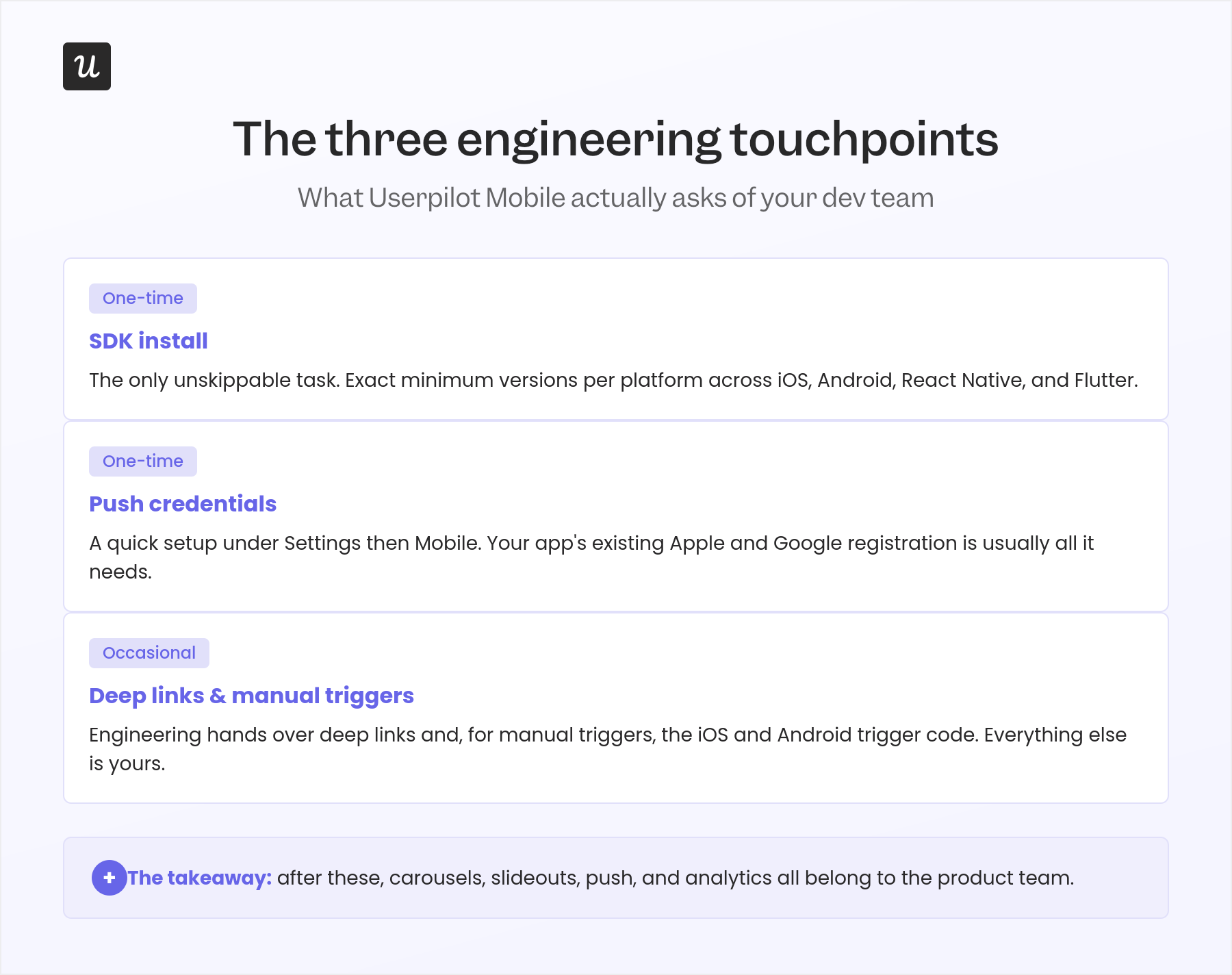
The second touchpoint is push credentials, a separate one-time setup under Settings, then Mobile. Push depends on your app being registered with Apple and Google, and these configurations authenticate Userpilot to send push notifications on your behalf.
| iOS | Android |
|---|---|
| Developer Team ID, e.g. ABCD1234XY | Project Number, from Firebase or Google Cloud |
| App Bundle Identifier, matching the bundle ID in Xcode, e.g. com.example.myapp | Service Account File, a Firebase service account JSON, which lets Userpilot send through Firebase Cloud Messaging |
| APNs Key File, the .p8 generated in the Apple Developer portal | |
| APNs Key ID, e.g. A1B2C3D4E5 | |
| Mode, Dev or Prod |
The docs note that your development team will typically have generated these already during your app’s push integration. If push is live for your app, this step is mostly copy and paste.
The third touchpoint covers deep links and manual triggers, and both are occasional rather than one-time. For deep links, you ask your engineering team for the links to the screen you want users to open. If you use the Only-Manually trigger, Userpilot surfaces the iOS and Android trigger code in the interface for you to hand over, so engineering can fire a carousel or slideout from a specific element in the app.
A first install can feel like a lot, and Userpilot provides a call with a mobile SDK engineer to help you through it. It’s documented, it’s real, and it’s the right thing to book before your sprint rather than during it.
How targeting and throttling decide what your users see
Targeting is where Userpilot Mobile is genuinely strong, and it’s also where a small misconfiguration turns a helpful nudge into notification spam. Carousels and slideouts can trigger in four ways:
- Start app session: Good for product onboarding or welcoming users back.
- Screen-specific: Good for feature adoption when a user reaches a given screen.
- Event occurrence: Good for contextual help or an upsell after an action, such as a purchase.
- Only manually: Gives you full control by triggering content from your own code.
Push notifications support two trigger types: User matches conditions and Event occurrence.
All three content types can be targeted to either Staging or Production, while push notifications also support per-environment audience rules. You can further limit delivery by operating system, choosing Any, iOS only, or Android only.
Audience selection is where push adds a decision the rest of the platform doesn’t, and it has real consequences. You can target All Users, a Saved Segment, or Custom Conditions, then choose between two audience models:
- Dynamic: Includes both current and future users who meet the criteria. For example, everyone who signs up from a specific country or plan will automatically receive the notification going forward.
- Fixed: Includes only users who match the criteria when the notification is created, excluding anyone who qualifies later.
Dynamic and Fixed are available only when User matches conditions is selected as the trigger.
On the frequency side, carousels and slideouts can run Only Once, Time-Based Recurrence, or Until the Goal Is Met. Push notifications support Only Once (immediately or at a custom time) and Recurring (based on match conditions or event occurrence), with stop conditions of Until the push notification is unpublished or Until the goal is met.
Ordering and throttling, introduced in March 2026, are configured separately for in-app experiences and push notifications. Without them, users can receive too many messages in a short period, leading to dismissals and notification fatigue.
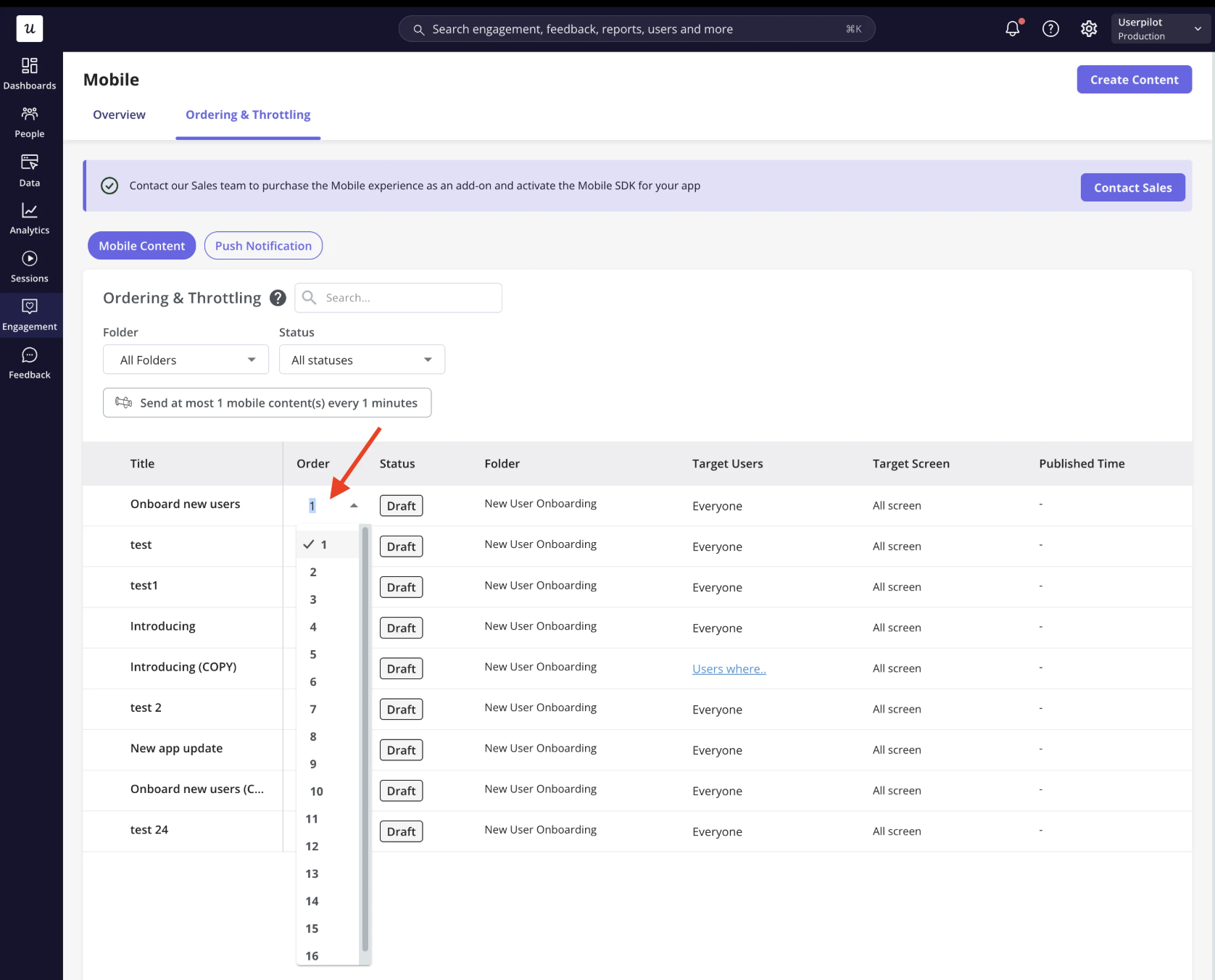
When multiple items qualify at the same time, ordering determines priority, while throttling limits how many experiences are actually delivered. For example, you might show at most one in-app experience every 30 minutes or send no more than two push notifications every 24 hours.
A few implementation details are easy to overlook:
- New content is added to the end of the priority list, so older content takes precedence unless you reorder it.
- Archived and manually triggered content are automatically removed from the ordering list.
- Publication schedules use your account’s time zone, not the user’s local time.
- Mobile localization requires the
locale_codeattribute because browser language isn’t shared between web and mobile.
What mobile metrics Userpilot reports back to you?
Userpilot Mobile reports carousels and slideouts on one set of metrics and push on another, because the events that matter are different. Here’s what each column tracks.
| Carousel and slideout | Push notification |
|---|---|
| Total Shown: unique users who received and saw it on their device | Total Sent: unique users successfully sent the notification |
| Completed: users who finished all carousel steps, or clicked the CTA in the slideout | Opened: users who tapped to open the app or reach the target screen |
| Dismissed: users who dismissed it | Average Open Time: average time to open after receiving |
| Average Time to Complete (carousel only) |
Each headline metric carries a green or red indicator showing the percentage change against the previous reporting period. The filter I reach for first is Operating System, because splitting mobile content data by iOS or Android lets you compare platform behavior directly and tailor future campaigns. Segment, Company, and Time Period round out the filters, and the performance graph toggles daily, weekly, and monthly views.
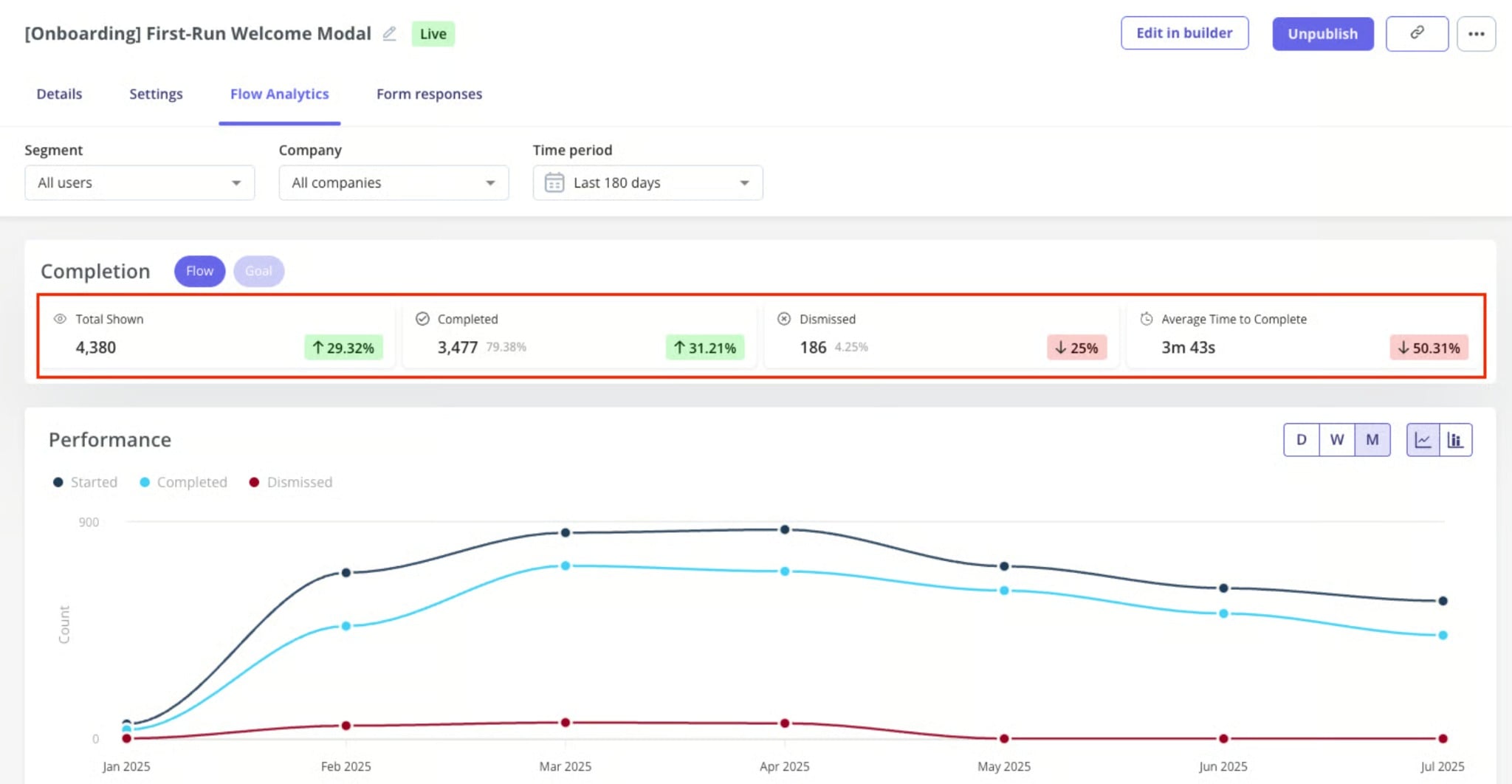
Below the graph, the user-level activity table shows exactly how each person interacted with your content. For carousels and slideouts, you can see Name and ID, Shown, Seen, Completed, Dismissed, and Goal Completed At. If you’ve configured a goal, Userpilot also reports Unique Users Seen for in-app content and Unique Users Sent for push notifications alongside goal completion. This is the view I rely on after a launch because it shows where users are dropping off instead of simply telling me that engagement has decreased.
Once we release a feature, the workflow is always the same: create a report, track the events that matter, and identify where users start abandoning the experience. The overview table makes that easier by listing every piece of mobile content with statuses such as Draft, Live, Live with unpublished changes, Sent, and Archived.
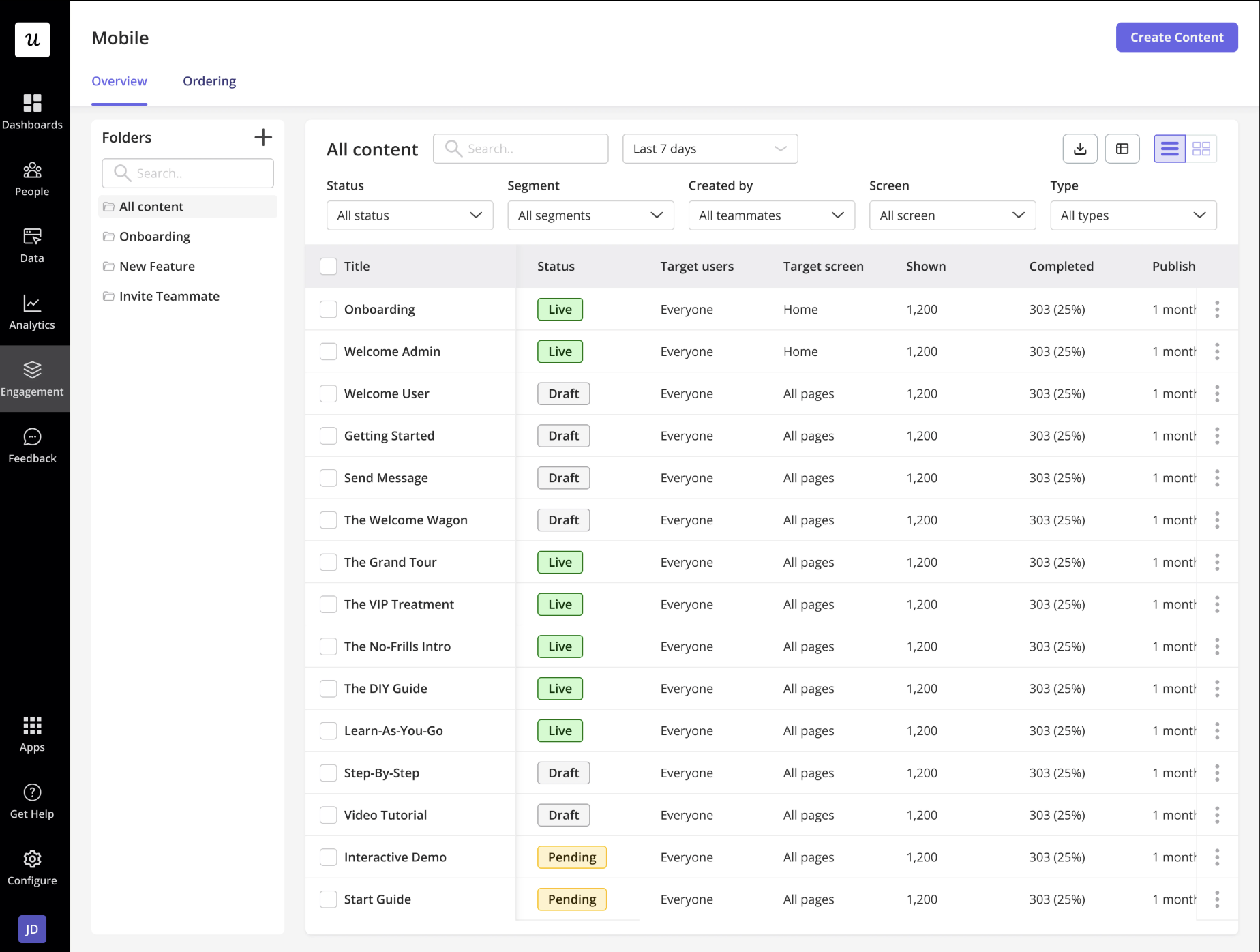
You can quickly narrow the list using filters for:
- Search
- Date range
- Status
- Segment
- Creator
- Screen
- Content type
You can also switch between table and card views depending on how you prefer to review your campaigns.
Beyond mobile engagement, Product Analytics added mobile screens to Path Reports in March 2026. This lets you view mobile screens alongside web events in the same user journey, making it easier to understand how users move between platforms. Path Reports support journeys of up to 12 steps.
One operational detail is worth knowing before exporting your data:
- Reports are exported as a CSV and sent to the email address associated with your Userpilot account.
- The export ignores your current filters and column layout, so you’ll always receive the complete dataset rather than the filtered view shown in the dashboard.
How much does Userpilot mobile cost?
I’ll give you the honest answer on Userpilot Mobile pricing first: no Userpilot page publishes a dollar figure for the mobile add-on, and the pricing page itself marks every mobile row “Add-On” with no number attached. The docs do state the part that anchors your budgeting, though.
Mobile support is an add-on feature that requires an annual purchase for Enterprise and Growth plans, and Starter users will need to upgrade their plan to access it. To have mobile enabled, the docs point you to [email protected]. That is a complete and honest answer to “how much does it cost,” and it’s exactly what the pricing page does.
Here’s the plan context you need around that add-on, drawn from the current Userpilot pricing tiers.
| Starter | Growth | Enterprise | |
|---|---|---|---|
| Price | $299/mo | From $849/mo | Custom |
| Monthly active users | Up to 2,000 | 0 to 100k, includes 2k | Custom, includes 10k |
| Seats | 3 | 15 | Unlimited |
| Data retention | 1 year | 3 years | Custom |
| Mobile access | None, upgrade required | Add-on, annual purchase | Add-on, annual purchase |
| Localization | Not available | 5 languages | Unlimited |
| Custom roles for mobile | Not available | Not available | Included |
| Mobile Session Replay | Not available | Add-on, coming soon | Add-on, coming soon |
The add-on sits on top of a plan, so budget the plan and the add-on together rather than treating mobile as a standalone line item. Starter cannot run mobile at any price, so the real entry point is Growth.
Two plan gates actually bite, and neither is obvious until you hit it. Localization caps at 5 languages on Growth, so if you ship to more markets than that, mobile localization becomes an Enterprise conversation. Custom roles also require Enterprise: by default, only Admin users and the Account Owner can create, edit, delete, and publish mobile content, and only Enterprise lets you build custom roles that assign those permissions, plus data export, to specific teammates.
How four different teams put Userpilot mobile to work
Userpilot Mobile earns its keep differently depending on who’s holding it, so here’s what it looks like across the four teams that use it most.
Product managers build segment-specific onboarding carousels on first app session and drop a screen-specific slideout on the exact step where users stall. Screen-level analytics tell you where users drop off before you decide what onboarding or guidance to build. With Mobile Screen Auto-Capture enabled, engineering no longer has to manually instrument every screen through code before you can review, tag, and organize them.
Growth and lifecycle marketers run push re-engagement with Dynamic audiences for evergreen campaigns that catch future signups, and Fixed audiences for one-time announcements to a current cohort. In-app upsell slideouts trigger on an event occurrence, such as hitting a usage milestone, so the offer lands when the user has just felt the value.
Customer success and support launch NPS, CSAT, or CES surveys immediately after key interactions, capturing user feedback while the experience is still fresh. When they spot drop-offs in setup or payment flows, they trigger a slideout that deep links users straight to the screen where they got stuck, so the next step is one tap instead of a support ticket.
UX designers use path reports that show web events and mobile screens in one journey, plus the Operating System filter to compare iOS against Android on the same content. Feedback captured right after a flow completes or is abandoned tells them what to change before the next round of design. One honest caveat: A/B testing isn’t documented for mobile content, since the Experiments docs cover web flows, so lean on path analysis rather than assuming split tests are available on mobile.
The limits worth knowing before you buy the add-on
Naming the limits of Userpilot Mobile on our own page is the strongest trust signal I can give you, so here they are without spin. Everything below is documented, and I’m not going to speculate past it.
Mobile Event Auto-Capture is coming soon. Screen auto-capture shipped in May 2026, but event auto-capture was described as coming soon in that same release note and has no shipped announcement yet, so manual event tracking still applies. Mobile Session Replay is also coming soon, per the pricing page, as an add-on for Growth and Enterprise.
On media, there’s no video in carousels or slideouts, though animated GIFs work, and push carries no images or video at all, only emojis. The OS preview is a simulator that shows how content will look on iOS and Android, and connecting a real device to test designs is planned for the future rather than available today.
There’s no iPad or tablet preview, even though iPads and Android tablets are supported. Mobile themes are platform-specific, and web and mobile themes are managed separately, so changes to your web theme won’t automatically apply to mobile content. Switching a carousel screen’s layout wipes that screen’s content with no way to revert, and localization caps at 5 languages on Growth and needs locale_code passed to work at all.
One more for anyone moving off manual screen tracking: review Userpilot’s migration guidance before enabling Mobile Screen Auto-Capture. Existing screen names may differ from automatically captured names, which can affect targeting, segmentation, and reporting until the migration is completed.
Ship mobile onboarding after a one-time SDK install
If you take one thing from this page, take the trade at the center of it: the Userpilot Mobile SDK install is a real engineering task with real minimum versions, it happens once, and after that the carousels, slideouts, push, surveys, targeting, and analytics all belong to your product team without a ticket in sight.
That’s the deal I’d want spelled out before I bought, so it’s the deal I’ve laid out here. If you want to see how it fits your own app, book a Userpilot demo.
About the author